ORM and ARM Textures: Channel Packing for Every Engine
ARM and ORM textures pack ambient occlusion, roughness and metallic into the three color channels of one file (R=AO, G=Rough, B=Metal). Unreal Engine and Godot read this format directly; Unity and GIANTS/FS25 need a channel repack.
- Our channel order
- ARM/ORM: R = AO, G = Roughness, B = Metallic
- Works as-is
- Unreal Engine (ORM mask), Godot (ORMMaterial3D)
- Needs repacking
- Unity URP/HDRP, GIANTS/FS25 (specular map)
- Tested with
- GIANTS Editor 10.0.13 with FS25, our own measurement, 2026-09-05
Why pack channels at all
Ambient occlusion, roughness and metallic are all plain grayscale maps – each one stores a single number per pixel, no color at all. Three separate grayscale files waste two-thirds of the available storage, though, since an RGB image carries three channels regardless of whether you use them. Put each grayscale map into its own color channel of a single file instead, and the engine only needs one texture instead of three, saving disk space and GPU memory while cutting the render-time texture fetches from three down to one. Across a scene with plenty of materials – and an FS25 map easily has hundreds of objects with their own textures – that adds up to a real difference in load time and frame rate.
The downside only shows up once you move between programs: every engine settled on its own channel order, and none of them is inherently "the right one." Moving a packed texture between pieces of software means checking first which order the destination expects – that's the whole point of this guide.
Our channel layout
Our _arm files pack the three maps like this:
| Channel | Content |
|---|---|
| Red (R) | Ambient Occlusion |
| Green (G) | Roughness |
| Blue (B) | Metallic |
This order isn't something we invented – it's the most common ORM layout in the industry, the same one Substance Painter's Unreal Engine export preset produces and the one Godot's ORM material expects. There's no single rule that explains why AO specifically sits in red rather than metallic; it became the convention because early Unreal workflows popularized exactly this layout. What matters for us is that one consistent order applies across all five of our textures – once you know how our _arm file is built, you don't need to look it up again for the next one.
Which engine wants what
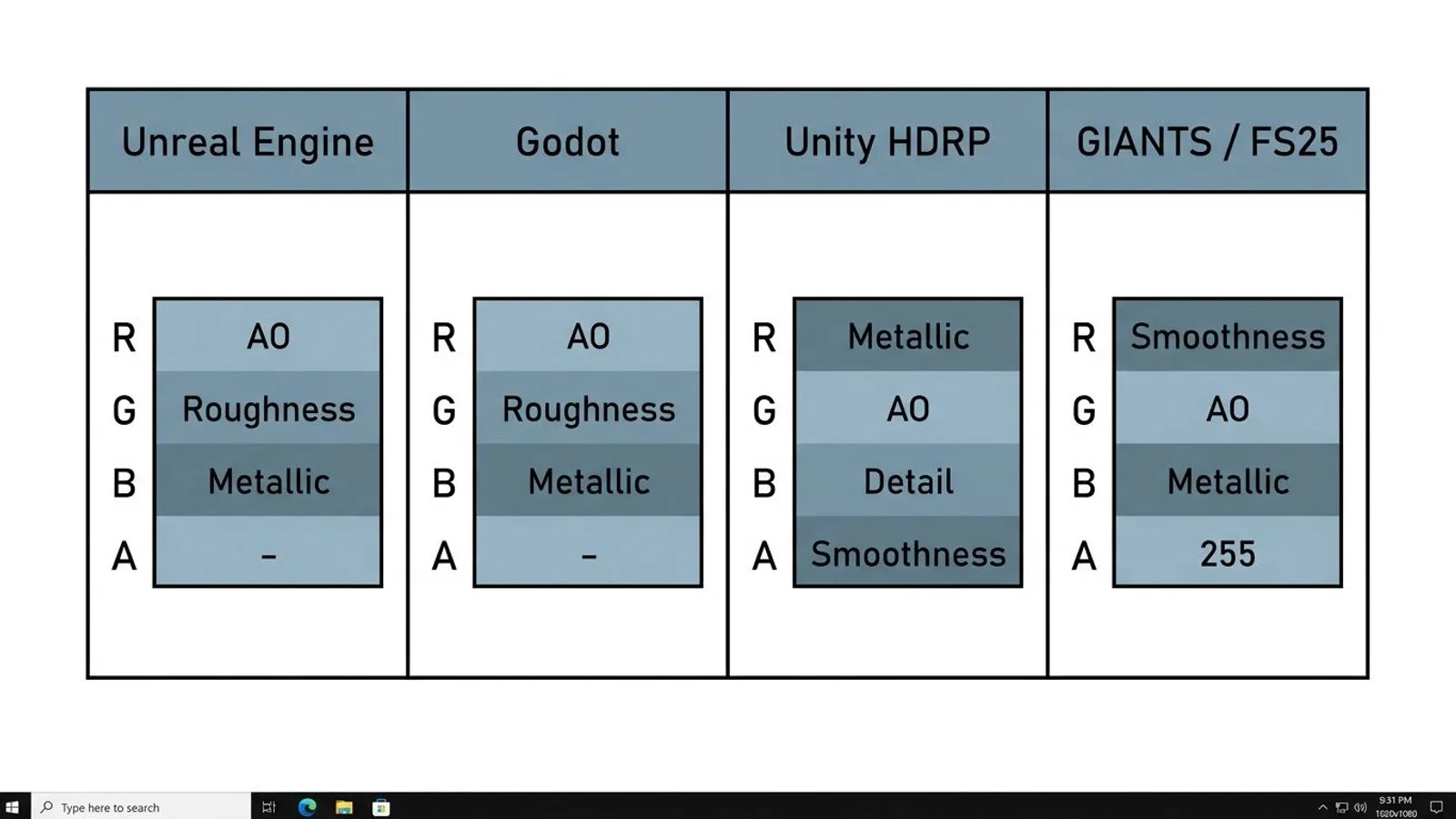
| Engine / target | Texture type | R | G | B | A | Usable as-is? |
|---|---|---|---|---|---|---|
| Unreal Engine | ORM mask texture | AO | Roughness | Metallic | – | Yes, our _arm works directly |
| Godot (ORMMaterial3D) | ORM texture | Occlusion | Roughness | Metallic | – | Yes, our _arm works directly |
| Unity URP (Lit shader) | Metallic Map | Metallic (grayscale) | – | – | Smoothness (default source) | No, needs its own map |
| Unity HDRP (Lit shader) | Mask Map | Metallic | Ambient Occlusion | Detail mask | Smoothness | No, needs repacking (script below) |
| GIANTS Editor / FS25 | Specular map (_specular) |
Smoothness = 255 − Roughness | Ambient Occlusion | Metallic | 255 | No, its own format (formula below) |
For Unreal Engine there's an additional rule: the packed mask texture has to import with sRGB disabled, listed in Unreal's own documentation under the "Masks (no sRGB)" compression setting – just like any other data map, it must never receive gamma correction, or the AO, roughness and metallic values shift against each other.
 AI-generated
Godot and Unreal: ready to use as-is
Because Godot's ORMMaterial3D, according to its own documentation, uses a single texture for occlusion, roughness and metallic and follows the same channel order that Substance Painter's Unreal export preset produces, our _arm file loads directly as an ORM texture in both engines. No conversion, no script, just assign the file.
The Godot guide covers picking an ORMMaterial3D instead of the default material, since Godot only reads a texture as ORM once that material type is selected – pick the standard material by mistake and Godot expects three separate maps instead, ignoring the packed file. For Unreal Engine, the Unreal Engine guide shows how to wire the ORM texture into the material editor, feeding roughness, metallic and the ambient occlusion input on the base color node.
Unity: two different problems
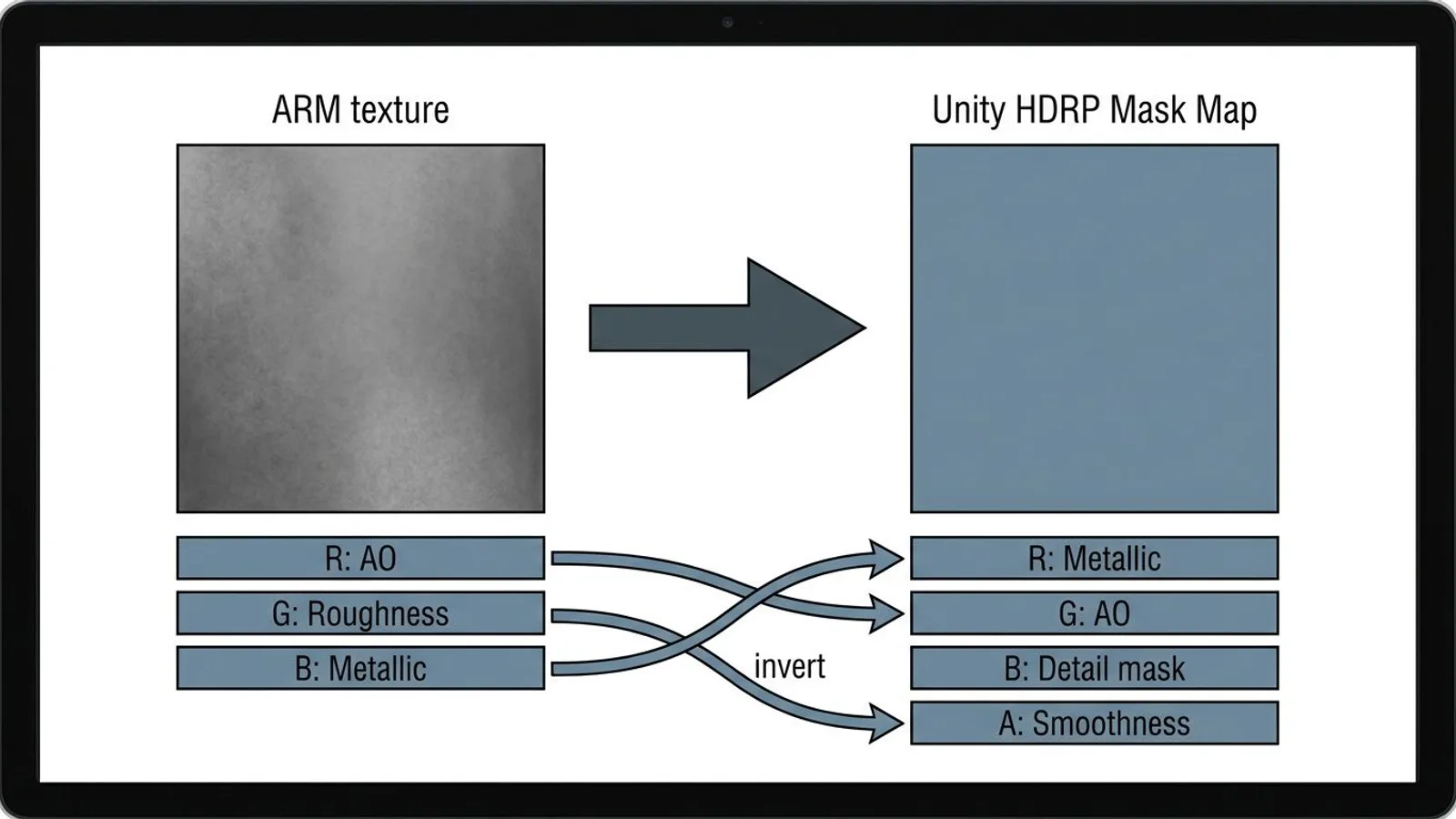
Unity has no single concept here, but two different layouts depending on the render pipeline. In the Universal Render Pipeline (URP), the Lit shader expects its own metallic map; smoothness, according to Unity's documentation, defaults to the alpha channel of that same metallic map, though it can be switched to the base map's alpha channel instead. In the High Definition Render Pipeline (HDRP) there's a different concept called the Mask Map: red carries metallic, green carries ambient occlusion, blue carries an optional detail mask, and alpha carries smoothness – a completely different channel order from our ARM texture, with AO and metallic swapped compared to what we ship.
Which render pipeline a project uses decides which path applies. The Unity guide walks through both cases: building a separate smoothness-in-alpha map for URP, and importing the Mask Map generated below for HDRP.
Repack script: ARM to Unity HDRP Mask Map
The following Python script, using Pillow, builds a matching HDRP Mask Map from one of our _arm files. It reads AO from red, roughness from green and metallic from blue of our ARM texture, then writes them back out in the order Unity expects, including the roughness-to-smoothness conversion:
from PIL import Image, ImageChops

def arm_to_hdrp_mask_map(arm_path, out_path, detail_mask_value=128):
    """Converts an FSMW ARM texture (R=AO, G=Rough, B=Metal)
    into a Unity HDRP Mask Map (R=Metal, G=AO, B=Detail, A=Smoothness)."""
    arm = Image.open(arm_path).convert("RGB")
    ao, rough, metal = arm.split()
    smoothness = ImageChops.invert(rough)          # Smoothness = 255 - Roughness
    detail = Image.new("L", arm.size, detail_mask_value)  # 128 = neutral, no detail map
    mask_map = Image.merge("RGBA", (metal, ao, detail, smoothness))
    mask_map.save(out_path)

arm_to_hdrp_mask_map("FSMW_cracked_concrete_01_arm_4k.jpg", "cracked_concrete_01_maskmap_4k.png")
We leave the detail channel at a neutral grey (value 128) since our texture packages don't ship a separate detail map – Unity's own documentation names 0.5 as the expected default value for each of the Mask Map's four channels. Once imported into Unity, the resulting file needs sRGB disabled, exactly like any other mask texture.
 AI-generated
GIANTS Editor and FS25: a format of its own, measured ourselves
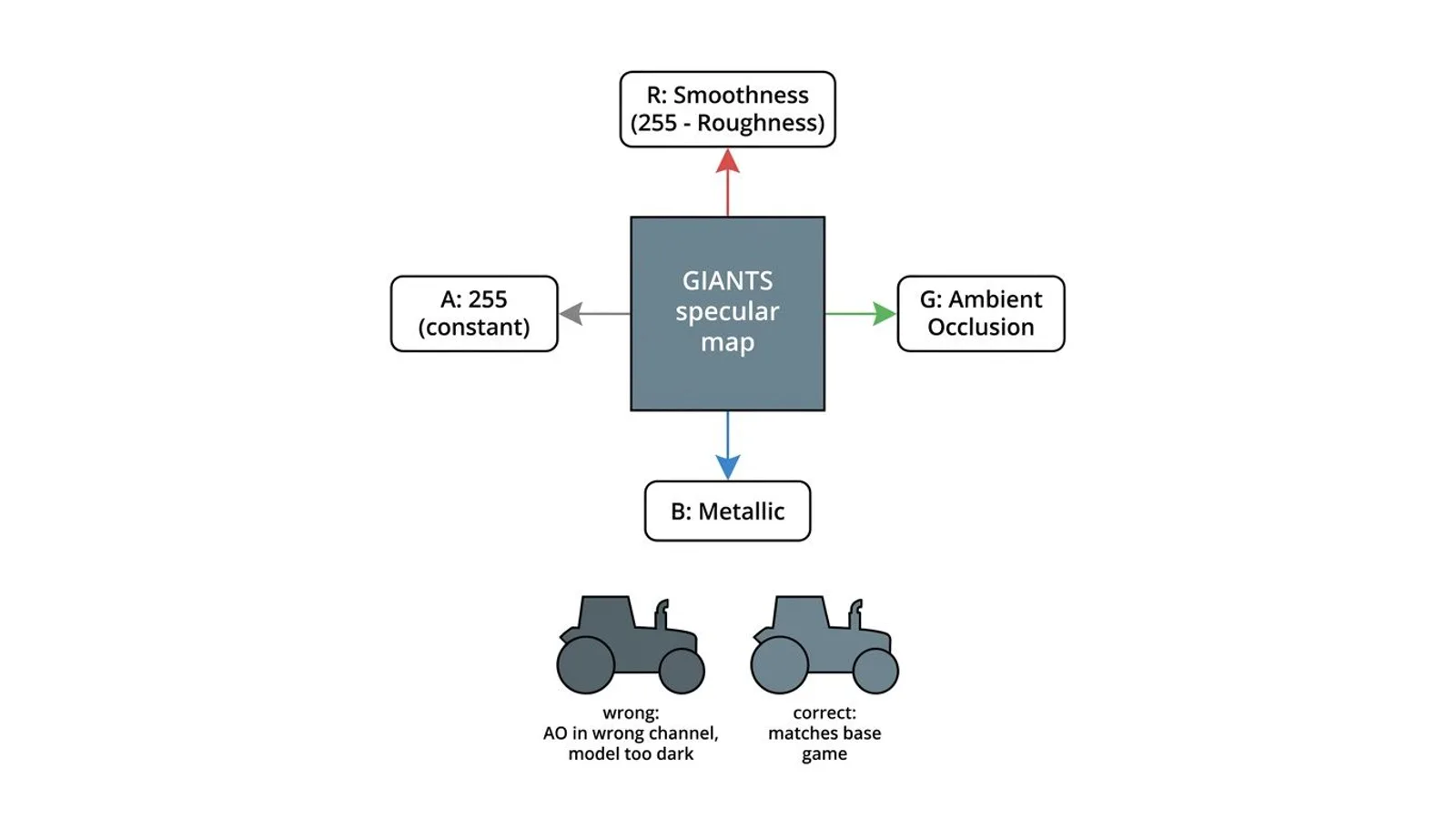
For Farming Simulator 25, GIANTS doesn't use an ARM or ORM texture at all – it uses a specular map with its own meaning per channel. Measured against the base game's own default_specular.dds file (RGBA 0/255/0/255), the layout is: red carries the smoothness value (inverted roughness, i.e. 255 minus roughness), green carries ambient occlusion, blue carries metallic, and alpha stays fixed at 255. That gives a direct conversion from our ARM texture:
R_spec = 255 − G_arm   (smoothness = inverted roughness)
G_spec = R_arm         (ambient occlusion stays in the same channel slot)
B_spec = B_arm         (metallic stays in the same channel slot)
A_spec = 255
That formula isn't a guess, it's the result of our own mistake. Our first attempt wrote an approximate specular color into red/green/blue and smoothness into alpha. That put a value around 30 into green instead of ambient occlusion – in the game, our models came out looking almost black. Only after switching to the layout above did brightness and shine match the base game.
 AI-generated
We generate the final DDS file with the GIANTS Texture Tool (tools/textureTool.exe, part of GIANTS Editor 10.0.13): diffuse as BC1 in sRGB, normal as BC5 in linear space, specular as BC3 also in linear space, mipmaps set to maximum for all three. The GIANTS Editor textures guide covers assigning the finished DDS files to a material in the editor.
Common problems
| Problem | Cause | Fix |
|---|---|---|
| Models look almost black in FS25 | Ambient occlusion and smoothness swapped or miscalculated in the specular map | Check the channel order R=smoothness, G=AO, B=metallic, see the formula above |
| Unreal material shows the wrong roughness or shine | ORM texture imported with sRGB enabled | Set the compression setting to "Masks (no sRGB)" |
| Unity HDRP material looks completely flat or completely shiny | ARM texture used unchanged as a Mask Map, channels don't line up | Convert it into a real HDRP Mask Map with the repack script |
| Godot material shows no metal highlight | ORM texture assigned to the wrong material type (StandardMaterial3D instead of ORMMaterial3D) | Switch the material type to ORMMaterial3D, see the Godot documentation |
Frequently asked questions
What do ARM and ORM stand for?
Both abbreviations name the same three grayscale maps in a different letter order: ambient occlusion, roughness and metallic, packed into red, green and blue of a single texture.
Is an ARM texture the same as an ORM texture?
Yes, as long as both use the same channel order – for us, and in most engines in practice, AO sits in red, roughness in green and metallic in blue. The name differs, the file doesn't.
Can I use our ARM texture directly in Unity?
Not without converting it. Unity's Standard and URP shaders expect metallic and smoothness in their own map, and HDRP expects a Mask Map with a different channel order. The repack script further down handles the HDRP case.
Why is FS25's specular map built differently from our ARM texture?
GIANTS uses a specular map for FS25 with its own channel assignment and an inverted smoothness value instead of roughness. It isn't a variant of ARM/ORM, it's a separate format – see the conversion formula below.
What does the alpha channel do in Unity's HDRP Mask Map?
It stores smoothness, the inverse of roughness. In HDRP the blue channel isn't metallic information at all, it's an optional detail mask.