FS25 Textures in the GIANTS Editor: From ARM Map to Specular Map
FS25 packs gloss, ambient occlusion and metallic into one specular DDS texture (R gloss, G AO, B metallic, A fixed at 255) instead of reading separate roughness and metallic maps.
- Version
- GIANTS Editor 10.0.13 (FS25 from patch 1.20.0)
- Tool
- GIANTS Texture Tool, tools/textureTool.exe inside the editor folder
- Specular channels
- R gloss, G ambient occlusion, B metallic, A fixed 255
- Time
- about 30 minutes per texture set
Why FS25 wants a specular map instead of a roughness texture
Texturing for Farming Simulator 25 follows different rules than most modern game engines. Anyone coming from Blender, Unity or Unreal usually brings a PBR set of diffuse, normal, roughness, metallic and AO, often already packed into an ORM texture. Our texture packages hold exactly that kind of set: _diff, _nor_gl, _rough, _ao, _disp, and _arm as a packed map (R AO, G roughness, B metallic). Drop that unchanged onto a placeable in the GIANTS Editor and nothing throws an error, but the model ends up looking flat, wrongly lit, or almost black in-game.
The reason sits inside the GIANTS Engine itself. FS25 does not read a separate roughness or metallic texture for PBR materials. It reads one specular map instead, packing three unrelated values into the color channels of a single RGBA texture. We did not copy this channel layout from a tutorial. We measured it ourselves on 05.09.2026, against the base game's own default_specular.dds: the values came out at RGBA 0/255/0/255. A metallic value of 0, an AO of 255 (fully lit) and a gloss value of 0 — exactly what you would expect from a neutral default surface.
Since that test, our build script calculates the specular map for our 3D models automatically from the packed ORM map. Our texture packages, on the other hand, ship the ARM map rather than a finished specular DDS, because they also need to work in Blender, Unity or Unreal. For FS25 you do the conversion yourself with this guide, using the same formula that runs in our models in the game.
Short answer: in almost every case, the problem sits in the green channel of the specular texture, which FS25 reads as ambient occlusion. More on that below, along with the conversion we use to fix it.
The four channels of the GIANTS specular texture
| Channel | Content | Meaning |
|---|---|---|
| R | Gloss / smoothness | 255 = full gloss, 0 = fully matte. Equal to 255 minus roughness |
| G | Ambient occlusion | bright (255) = fully lit, dark = occluded |
| B | Metallic | 255 = metal, 0 = non-metallic material |
| A | fixed 255 | 255 in the base game, and that is what we set too |
This is where modders coming from other engines usually get tripped up: gloss and roughness are inverted relative to each other, and AO sits in the green channel instead of alpha. Rename a finished ORM texture (R AO, G roughness, B metallic) to a specular map without any conversion, and you swap gloss with AO while leaving the inversion undone.
Our first attempt got it wrong
Before we had measured the channel layout, we followed an older recipe that set RGB to a specular color (about 0.04 for non-metallic materials in our case) and alpha to a gloss value. That recipe put a value around 30 into our green channel. In-game, that meant near-black ambient occlusion, and our test objects came out almost completely black during our first in-game test on 05.09.2026, no matter how bright the scene was lit. Since switching to the measured channel layout, the objects sit correctly in the light.
Our conversion: from ARM to the GIANTS specular map
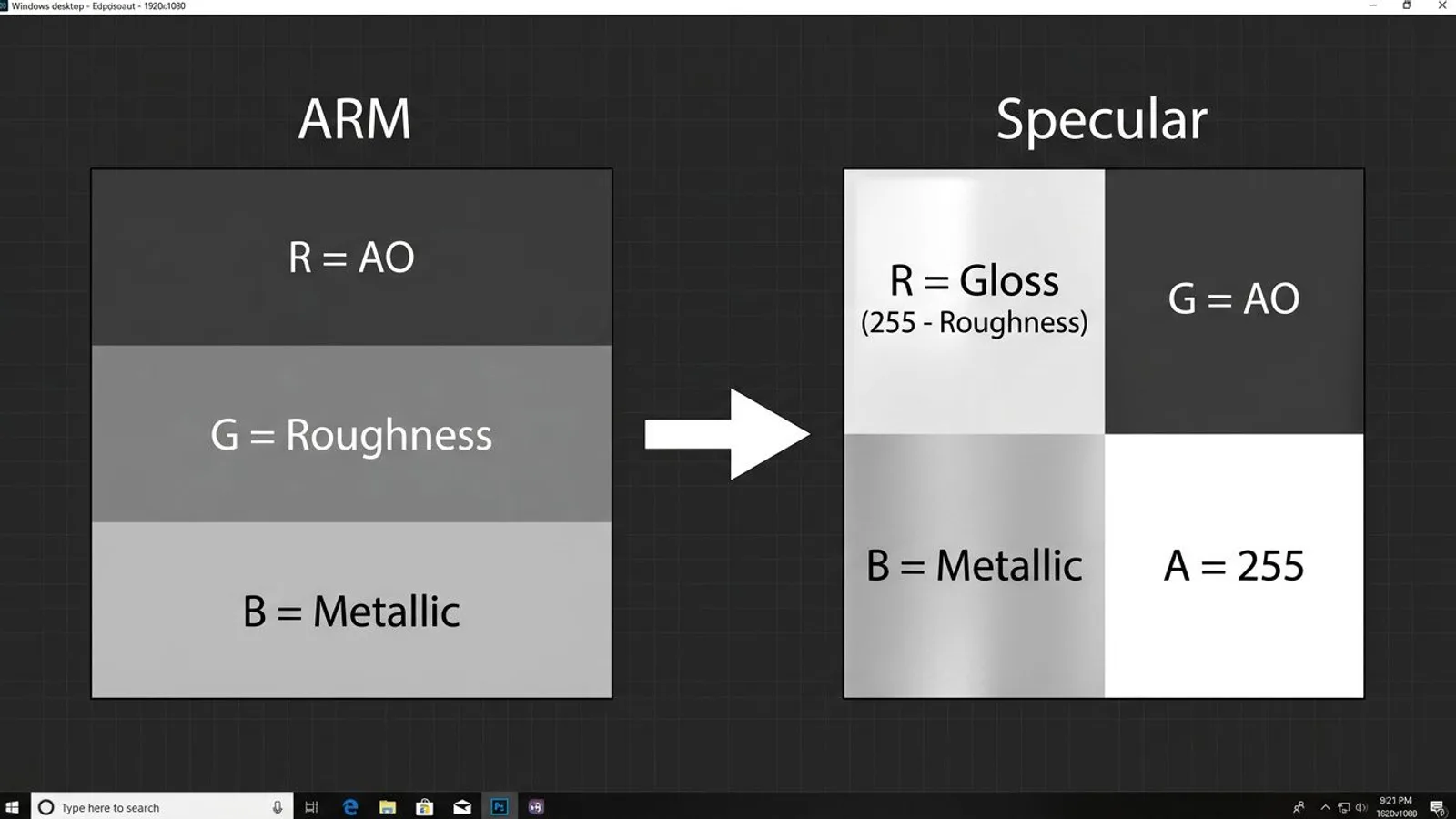
Our texture packages always ship the ARM map in ORM order: R = ambient occlusion, G = roughness, B = metallic. For the GIANTS specular map, the mapping is:
| ARM source | Operation | Target specular channel |
|---|---|---|
| G (roughness) | 255 − value | R (gloss) |
| R (ambient occlusion) | unchanged | G (AO) |
| B (metallic) | unchanged | B (metallic) |
| – | fixed at 255 | A |
As a formula: R_spec = 255 − G_arm, G_spec = R_arm, B_spec = B_arm, A = 255.
 AI-generated
This runs in a few lines of Python with Pillow, no extra tools required:
from PIL import Image

arm = Image.open("FSMW_texture_arm_4k.jpg").convert("RGB")
r_arm, g_arm, b_arm = arm.split()  # R = AO, G = roughness, B = metallic

gloss = g_arm.point(lambda p: 255 - p)      # R_spec = 255 - roughness
ao = r_arm                                   # G_spec = AO
metallic = b_arm                             # B_spec = metallic
alpha = Image.new("L", arm.size, 255)        # A = 255

specular = Image.merge("RGBA", (gloss, ao, metallic, alpha))
specular.save("texture_specular.png")
The PNG this script produces is the input for the GIANTS Texture Tool, which turns it into the final _specular.dds. For more on ORM and ARM maps in general, including other engines, see our ORM and ARM maps guide.
DDS format per map
GIANTS does not load PNG or JPG files directly. It reads compressed DDS textures, and each map type needs its own format, otherwise normal maps look blocky or diffuse textures end up needlessly large:
| Map | DDS format | Color space | Mipmaps |
|---|---|---|---|
| Diffuse | BC1 | sRGB | maximum |
Normal (_nor_gl) |
BC5 | linear | maximum, normalized |
| Specular | BC3 | linear | maximum |
BC1 is enough for diffuse textures because there is no high-precision alpha channel needed here. BC5 stores only two channels (X and Y) at high precision for normal maps, which avoids banding. BC3 keeps the alpha channel on the specular map, which we set to 255 like the base game does.
The difference shows up in GPU memory: an uncompressed 4K texture with four channels takes 4096 × 4096 × 4 bytes, which is 64 MB. As BC1 it is an eighth of that (8 MB), as BC3 or BC5 a quarter (16 MB), plus roughly a third on top for the mipmaps. With three maps per material, that adds up quickly.
 AI-generated
The GIANTS Texture Tool
The conversion tool comes with the GIANTS Editor: in version 10.0.13, it sits under tools/textureTool.exe inside the editor's installation folder. The GIANTS forum points directly to this tool whenever a texture is in the wrong format for PNG-to-DDS conversion.
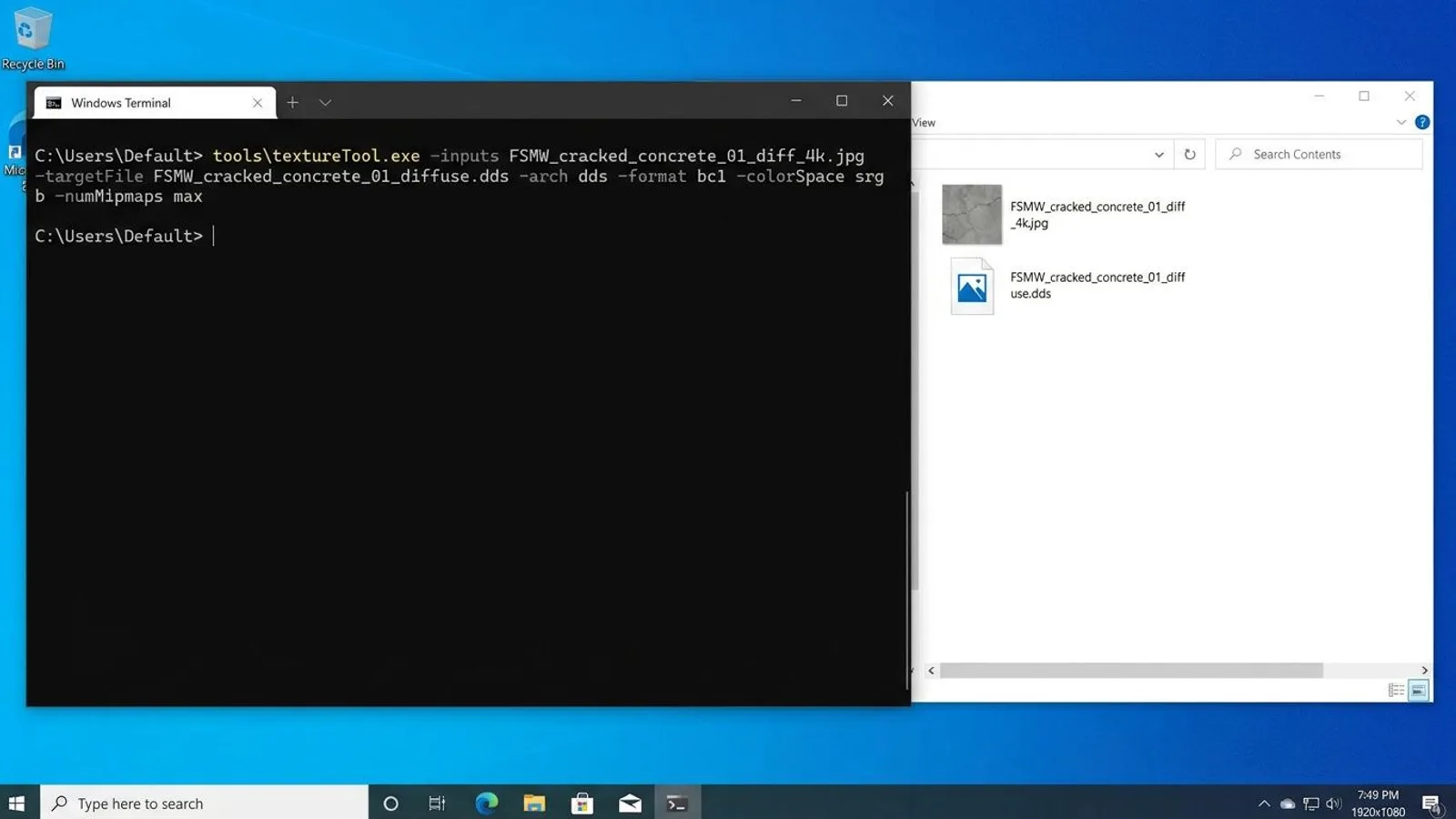
We call it from the command line instead of exporting each texture through a dialog. A call for the diffuse map looks like this on our end:
tools\textureTool.exe -inputs FSMW_cracked_concrete_01_diff_4k.jpg -targetFile FSMW_cracked_concrete_01_diffuse.dds -arch dds -format bc1 -colorSpace srgb -numMipmaps max
For the normal map, format and color space change, plus two switches for normal maps:
tools\textureTool.exe -inputs FSMW_cracked_concrete_01_nor_gl_4k.png -targetFile FSMW_cracked_concrete_01_normal.dds -arch dds -format bc5 -colorSpace linear -numMipmaps max -normalMapFormat rgb -normalizeMipmaps true
And for the specular map we calculated ourselves:
tools\textureTool.exe -inputs texture_specular.png -targetFile FSMW_cracked_concrete_01_specular.dds -arch dds -format bc3 -colorSpace linear -numMipmaps max
All three calls fit into one batch script that converts a full texture set in one pass.
Normal maps stay unchanged
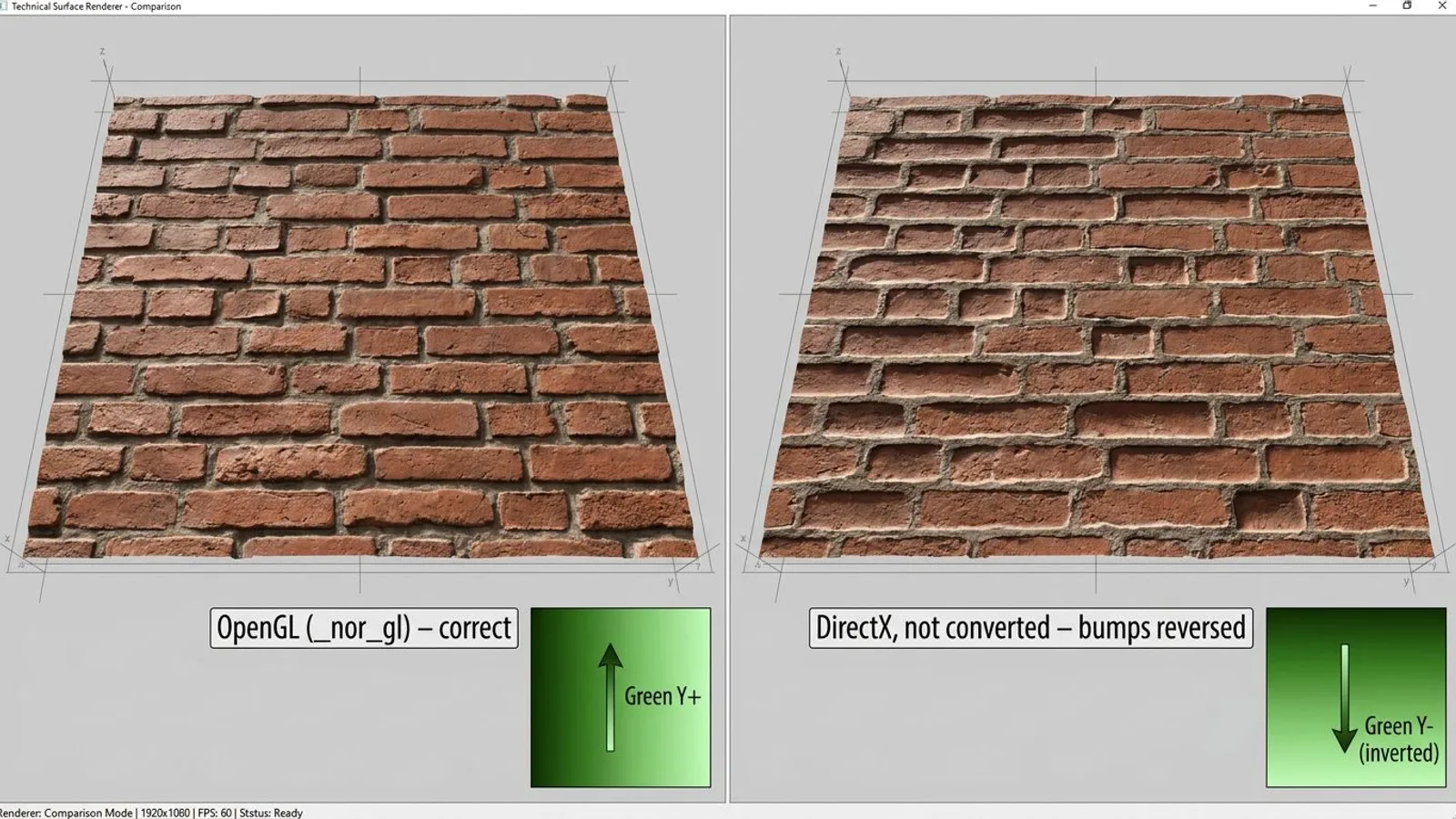
Unlike diffuse and specular, the normal map needs no conversion. GIANTS uses the OpenGL convention for normal maps, where the green channel points up. Our _nor_gl files already ship in this convention and go straight into the Texture Tool unchanged. If you bring in a DirectX normal map (inverted green channel) from a different workflow instead, you need to flip exactly that one channel first, or bumps and dents will look reversed in-game. Details on the OpenGL/DirectX conversion for other 3D applications are in our normal map guide.
 AI-generated
Assigning the material in the GIANTS Editor
In the i3d, the three DDS files hang off the shape's material. That is how our own build script writes it for our 3D models, and you can check it in any i3d file with a text editor:
<Files>
  <File fileId="1" filename="FSMW_cracked_concrete_01_diffuse.dds"/>
  <File fileId="2" filename="FSMW_cracked_concrete_01_normal.dds"/>
  <File fileId="3" filename="FSMW_cracked_concrete_01_specular.dds"/>
  <File fileId="4" filename="$data/shaders/placeableShader.xml"/>
</Files>
<Materials>
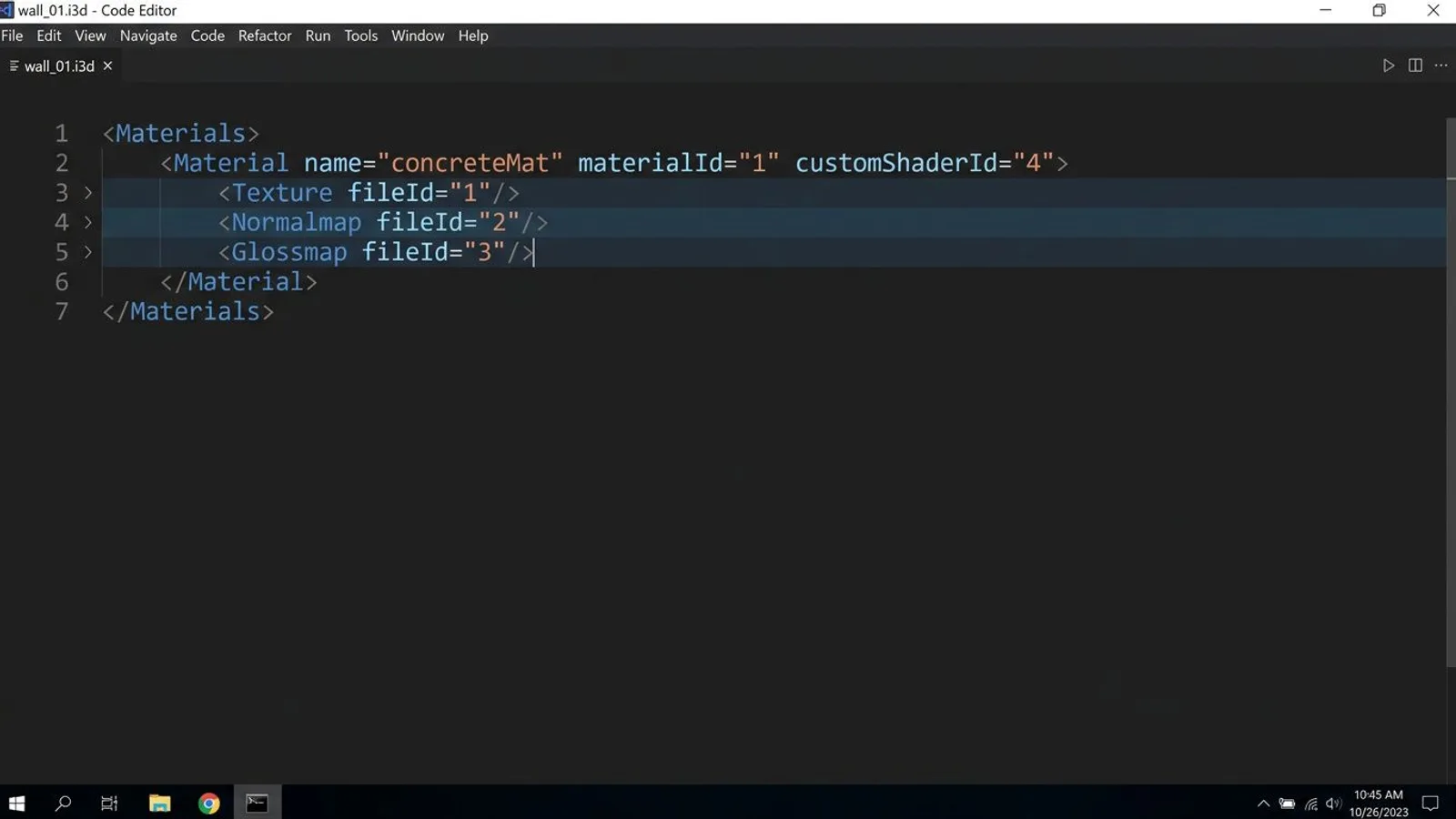
  <Material name="concreteMat" materialId="1" customShaderId="4">
    <Texture fileId="1"/>
    <Normalmap fileId="2"/>
    <Glossmap fileId="3"/>
  </Material>
</Materials>
| i3d entry | File | Holds |
|---|---|---|
Texture |
_diffuse.dds |
colour |
Normalmap |
_normal.dds |
surface relief |
Glossmap |
_specular.dds |
gloss, AO and metallic |
So in the i3d, the specular map is called Glossmap. Once you know that, you can spot it in anyone else's mod straight away.
Step 1: Select the shape
Open your i3d in the GIANTS Editor and select the object in the Scenegraph Panel (menu Window, item Scenegraph, if the panel is not already visible).
Step 2: Check the material
Open the Attributes Panel from the Window menu. It shows the properties of the selected shape. Check there, or directly in the i3d, that the material carries the three files in the right entries: diffuse under Texture, normal under Normalmap, specular under Glossmap. According to the GIANTS documentation, the editor marks an attribute field red as soon as it holds an invalid value.
 AI-generated
Step 3: Save and look at it in-game
Save the i3d and look at the object in the game. If gloss and shading are off, the cause is almost always the channel conversion or swapped entries. A normal map sitting under Glossmap throws no error on save, it just gives you an oddly shaded model.
Tile size and UV
Every one of our textures is calibrated to a fixed edge length in meters, so it fits onto a 1:1 UV without extra conversion:
| Texture | Tile size |
|---|---|
| Cracked Concrete 01 | 1 × 1 m |
| Oak Planks 01 | 1.2 × 1.2 m |
| Rusty Corrugated Metal 01 | 0.988 × 0.988 m |
| Cobblestone 01 | 1.5 × 1.5 m |
| Corrugated Metal 01 | 0.684 × 0.684 m |
If you build a surface in the GIANTS Editor or your 3D application with an edge length that is a multiple of these measurements, and set the UV coordinates accordingly, the texture tiles without a visible seam in the pattern. Our Cracked Concrete 01 is a good example of a texture built around a fixed tile size.
For a 4 × 3 meter wall with a 1 × 1 meter tile, that means setting the UV to four repeats in width and three in height. Use odd numbers or the wrong tile size instead, and the pattern will visibly shift at the edges, even if the diffuse, normal and specular textures are all technically converted correctly. Tile size belongs in the UV planning stage, not as an afterthought right before saving.
Each of our textures ships in three resolution steps, 2K (2048 pixels), 4K (4096 pixels) and 8K (8192 pixels), each with the same six maps (diffuse, normal, roughness, ambient occlusion, displacement, ARM). For the GIANTS specular map, the 4K version of the ARM file is usually enough, except on very large surfaces like warehouse walls, where 8K still makes a visible difference.
Common problems
| Problem | Cause | Fix |
|---|---|---|
| Object looks almost black in-game | AO value in the green specular channel is close to 0 | Map the ARM channels correctly: G_spec = R_arm, don't use the diffuse color as the specular RGB value |
| Object looks too glossy or too flat | Roughness was not inverted | Check the formula R_spec = 255 − G_arm, don't copy roughness straight into the gloss channel |
| Bumps and dents look reversed | Normal map is in DirectX instead of OpenGL convention | Only use _nor_gl, or invert the green channel of a DirectX normal map before conversion |
| Texture looks blurry or flickers at a distance | Mipmaps were not set to maximum in the Texture Tool call | Set -numMipmaps max on all three Texture Tool calls |
For installing the GIANTS Editor and the Texture Tool in the first place, see our GIANTS Editor getting started guide.
Frequently asked questions
Why doesn't FS25 accept a roughness and metallic texture like Blender or Unity do?
FS25 runs on the GIANTS Engine, which packs gloss, ambient occlusion and metallic into a single RGBA specular texture instead of reading separate roughness and metallic maps.
Which DDS format does the specular texture need?
BC3 in linear color space, with the maximum number of mipmaps.
How do I convert an ARM texture into the GIANTS specular map?
The roughness value from the green ARM channel is inverted and moved into the red specular channel, the AO value from the red ARM channel moves into the green channel, the blue metallic channel stays blue, and alpha is set to 255.
Where is the GIANTS Texture Tool located?
It ships with the GIANTS Editor installation under tools/textureTool.exe and can also be called from the command line.
Why does my model look almost black in-game even though the diffuse texture is correct?
In most cases the AO value in the green channel of the specular texture is too close to 0. Once the ARM-to-specular conversion is correct, the effect disappears.