Normal Maps Explained: Tangent Space, RGB Channels and OpenGL vs. DirectX
A normal map stores a surface direction per pixel across its three color channels. Two conventions exist that differ only in the green channel: OpenGL (Y+, used by Blender, Godot, Unity, GIANTS Editor) and DirectX (Y-, Unreal Engine's default).
- In short
- Red and blue are identical between OpenGL and DirectX, only green is flipped
- Our textures
- _nor_gl = OpenGL convention, 16-bit PNG
- Converting
- Invert the green channel, e.g. with a short Python script
- GIANTS Editor / FS25
- uses OpenGL — our _nor_gl files work without any changes
What a normal map actually stores
A normal map looks like a color texture, but it isn't one. Every pixel stores a vector describing which direction the surface faces at that exact point. A vector in space has three components, which is exactly why it fits into the three channels of an image: red carries the X direction, green carries Y, and blue carries Z. A renderer reads these values and bends the surface normal used for lighting, without moving a single vertex of the actual mesh. Rivets, seams, or wood grain suddenly read as three-dimensional, even though the geometry underneath stays completely flat.
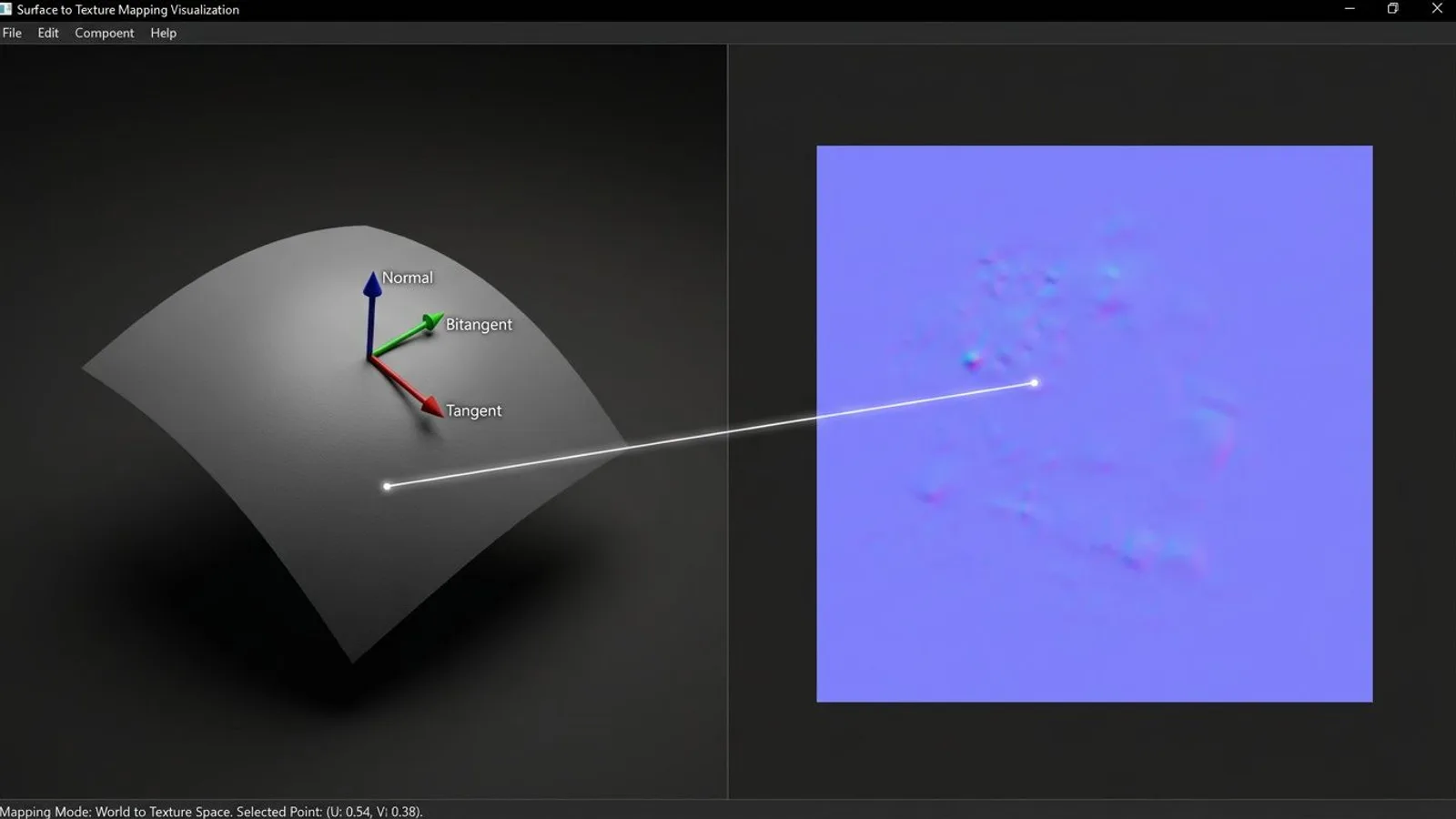
Almost every normal map you buy, download, or bake yourself lives in what's called tangent space: a local coordinate system that rotates along with the surface itself. That's what makes a tangent-space map reusable even after the object gets rotated, scaled, or deformed by animation, since the stored directions are always relative to the local surface rather than a fixed world axis. Blender's own manual explains why this became the default: object-space maps stay glued to the surface too, but break down on deformed meshes, and world-space maps fall apart the moment the object simply rotates.
 AI-generated
Because a direction vector only ranges from -1 to +1, and an image channel only stores 0–255 (or 0–65535 at 16 bit), the vector gets stretched to fit that range when it's saved. A neutral, outward-facing point lands roughly in the middle of that range, which is exactly why an untouched normal map has that familiar blue-violet base color.
For a baked normal map to look right later, two pieces of software need to agree on what "up" and "down" mean at that exact spot: whatever tool generated the map, and whatever tool ends up rendering it. That agreement is the convention, and mismatches there are the single most common source of broken-looking normal maps.
Normal, bump, and displacement maps in short
The three map types get mixed up constantly, but they each solve a different problem.
A bump map is a plain grayscale image. The renderer derives only a rough shading change from it, with no real direction information behind it. That's fine for very fine surface noise, but it starts looking flat and oddly lit once the details get larger.
A normal map instead stores the real direction of the micro-surface, so light reacts far more convincingly to edges and recesses. Either way, the object's silhouette never changes, because no geometry actually moves.
A displacement map goes a step further and moves vertex positions based on a height value. That requires enough subdivision in the mesh, or the result looks blocky and coarse. Because that topic has its own pitfalls, from bit depth to seams at UV borders, we cover displacement maps in a dedicated guide.
OpenGL vs. DirectX: the difference lives in the green channel
This is where the confusion usually starts for anyone working across 3D tools: there isn't just one kind of normal map, there are two variants that look identical at a glance. The split traces back to two graphics APIs, OpenGL and DirectX, which historically defined the Y axis in opposite directions.
Blender's manual states this directly on the Normal Map node: Blender uses the OpenGL convention by default. Godot's official documentation is equally explicit, requiring normal maps with X+, Y+, and Z+ coordinates — OpenGL again — and offering an import option called "Normal Map Invert Y" specifically to convert DirectX-style textures.
In practice, red and blue are identical between both conventions. Only green flips. A pixel that reads bright green in the OpenGL version, meaning the surface points "up," reads dark green in the DirectX version of the exact same texture, meaning the surface points "down" — with red and blue left completely untouched.
How to spot the convention
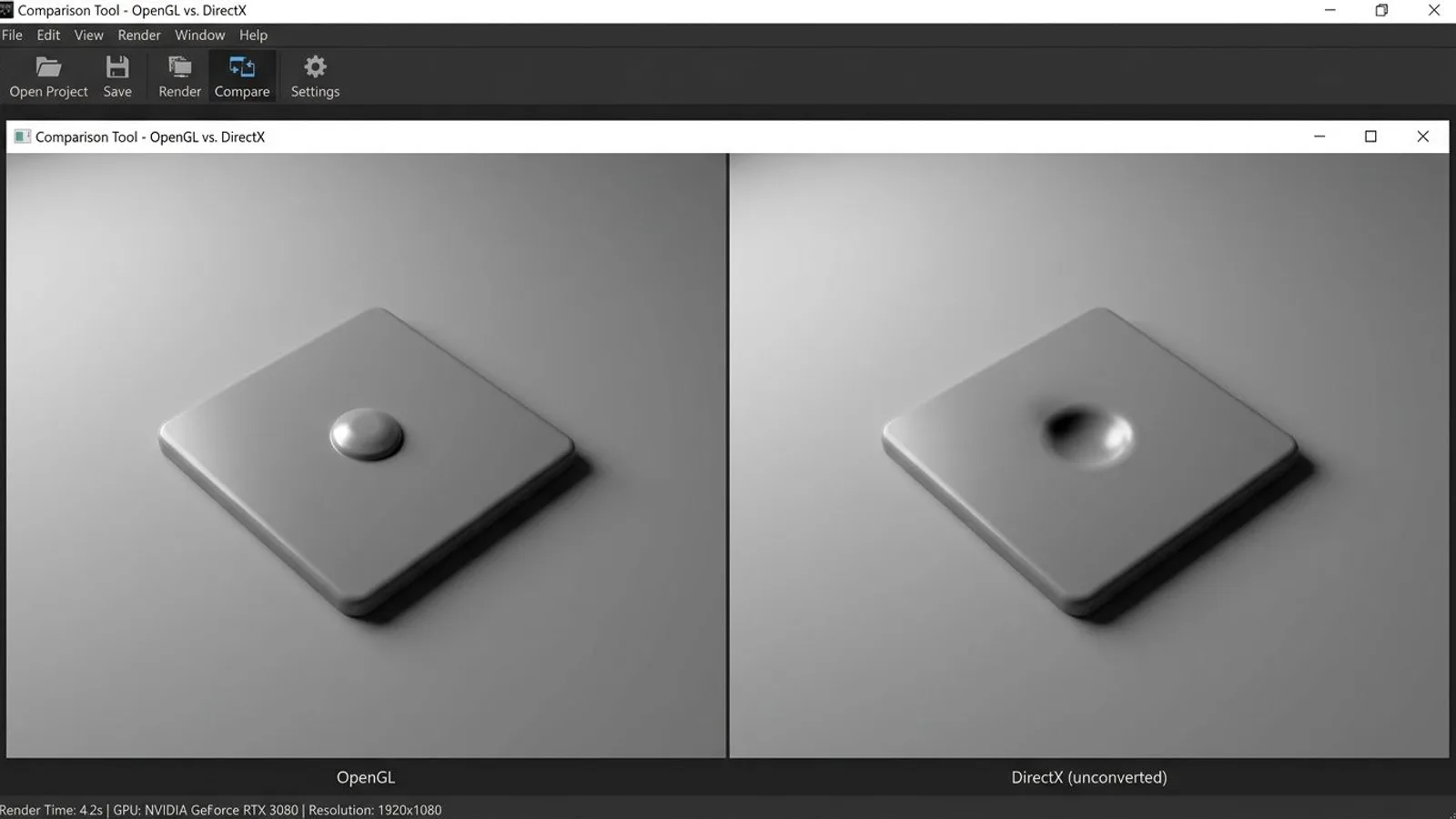
Without metadata baked into the file itself, the only reliable check is the result. The most dependable test happens on a lit model: if light visibly comes from above and a raised detail, say a rivet or a ridge, still reads as a dent, the green convention of the texture doesn't match what the software expects. Flip the green channel and if that same spot suddenly looks properly raised, that confirms the mismatch.
A faster warning sign: if two otherwise similar programs render the exact same, unmodified normal map file with different-looking lighting, the green convention is almost always the cause, not an import setting or color space issue.
 AI-generated
How to convert: flipping the green channel
The conversion itself is simple, since only one channel is involved. For 8-bit images: new green value = 255 minus the original green value. For 16-bit files, like our own _nor_gl textures, replace 255 with 65535. Red and blue stay untouched in both cases.
In Photoshop or GIMP, this happens through the channels panel: isolate the green channel, invert it, switch back to the RGB view, and save. For anyone who wants to automate the step, a few lines of Python with Pillow get the job done:
from PIL import Image

def flip_green_channel(input_path, output_path):
    img = Image.open(input_path)
    channels = img.split()
    if len(channels) < 3:
        raise ValueError("File does not have three color channels")
    red, green, blue = channels[0], channels[1], channels[2]
    flipped_green = green.point(lambda value: 255 - value)
    result = Image.merge("RGB", (red, flipped_green, blue))
    result.save(output_path)

flip_green_channel("normal_opengl.png", "normal_directx.png")
For a 16-bit PNG, replace the 255 in that last line with 65535 and open the file in the matching mode. The main thing to watch for is inverting twice by accident, once in software and once in the file itself — that puts you right back where you started, while the actual bug hides somewhere else entirely.
Which software uses which convention?
Anyone working inside a single program rarely has to think about this, since baking and rendering already agree there. The trouble starts the moment assets move between tools: a normal map baked in Blender used inside an Unreal Engine project, or a texture set built for Unity dropped into Godot. That's exactly when the table below earns its keep, before time gets wasted hunting for the wrong cause. It summarizes what the official documentation actually states, and where that documentation stays silent, the table says so instead of guessing.
| Software | Convention | Source |
|---|---|---|
| GIANTS Editor (Farming Simulator 25) | OpenGL (Y+) | Our own experience from building textures and models |
| Blender | OpenGL (Y+), the default | Blender Manual, Normal Map Node |
| Godot | OpenGL (Y+) required; DirectX maps convert via the "Normal Map Invert Y" import option | Godot documentation, Importing Images |
| Unity | OpenGL (Y+); also ships a "Flip Green Channel" texture import option for foreign DirectX maps | Unity Manual, Introduction to normal maps (bump mapping): "Unity uses Y+ normal maps, sometimes known as OpenGL format." |
| Unreal Engine | DirectX (Y-) by default, per Epic Games; a "Flip Green Channel" texture property converts foreign OpenGL maps | Epic Games, Fab documentation "Setting up Assets for Fab in Launcher": "You must provide normal maps in tangent space, in the DirectX convention by default […]" |
| 3ds Max | Depends on the renderer in use, no software-wide convention is documented | Not clearly documented |
| Maya | Depends on the renderer in use, no software-wide convention is documented | Not clearly documented |
| Cinema 4D | Depends on the renderer in use, no software-wide convention is documented | Not clearly documented |
| SketchUp | Normal map support only arrived with recent PBR materials; we found no documented green convention | Not clearly documented |
For 3ds Max, Maya, and Cinema 4D, the application itself doesn't lock in a convention — the renderer you use, such as Arnold, Corona, or Redshift, provides its own option to invert the green channel. We walk through checking and setting that in the individual guides. For Blender, our separate Blender normal map guide also covers baking the maps themselves, including the settings that matter once you export to other software.
GIANTS Editor, Farming Simulator 25, and our own files
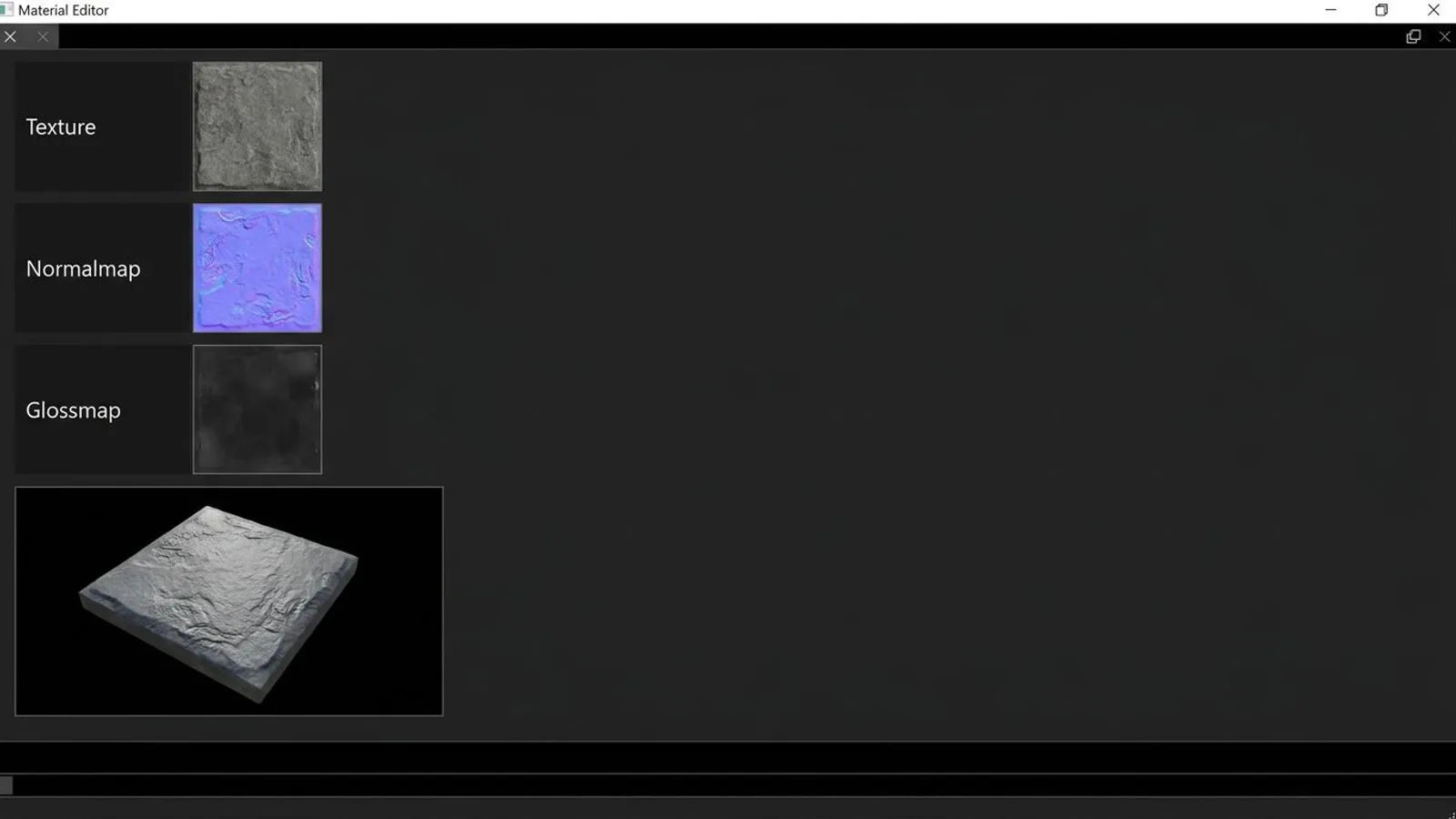
For our own products this is settled: the GIANTS Editor uses the OpenGL convention, which is exactly why our normal maps ship with the _nor_gl suffix. They load into the GIANTS Editor unmodified, with no channel inversion needed. That covers both the plain texture packs (16-bit PNG) and the normal maps bundled in our 3D model packages, which arrive pre-converted for GIANTS import as _normal.dds in BC5 format with a linear color space.
 AI-generated
To get from PNG to DDS, we use the GIANTS Texture Tool that ships with the GIANTS Editor. BC5 is the intended format for normal maps, since it's built for two-channel directional data like red and green and produces fewer compression artifacts than generic formats. The linear color space instead of sRGB matters because normal maps don't carry color information in the usual sense; they store pure direction values that a gamma curve would otherwise distort.
Anyone using the same textures outside the FS25 modding world, say inside an Unreal Engine project, needs to flip the green channel once as described above. Blender, Godot, and other OpenGL-based tools need no adjustment at all.
Why PNG and not JPG
We ship our normal maps consistently as 16-bit PNG, never as JPG. The reason comes down to how JPG compresses data: it saves space mostly in areas the human eye notices less, such as subtle gradients, and rounds values in the process. On an ordinary photo texture that's barely noticeable. On a normal map, the actual information lives exactly in those subtle per-channel gradients. Once compression rounds them, visible stepping or a faint flicker in the lighting can appear as the camera moves, because neighboring pixels suddenly store slightly different directions even though the real surface is smooth.
16-bit instead of 8-bit channels help for the same reason: an 8-bit channel only has 256 possible steps, while a 16-bit channel has 65,536. On smooth, large-scale gradients, like those found in ordinary wall or ground textures, that difference meaningfully reduces visible banding, especially before the texture gets compressed again for the target engine.
Common problems
| Problem | Cause | Fix |
|---|---|---|
| Raised details look like dents instead | The green channel convention doesn't match the target software (an OpenGL map in a DirectX pipeline, or the reverse) | Flip the green channel, e.g. via the channels panel in Photoshop/GIMP or the Python script above |
| Lighting looks noisy or oddly tinted after import | The normal map was imported with sRGB color space instead of linear/"Non-Color" | Set the import color space to linear or "Non-Color" in the software you're using |
| Visible seams or hard edges appear at UV borders | Heavy lossy compression (e.g. JPG) or a GPU format not suited to normal maps | Use a lossless format like PNG and pick a normal-map-appropriate GPU compression format on export |
| The same model looks differently lit in two different programs | Both programs expect different green conventions, but the file only exists in one variant | Keep a version for each target: OpenGL for Blender/Godot/GIANTS Editor, and the flipped version for Unreal Engine |
Frequently asked questions
What is the difference between a normal map and a bump map?
A bump map is a plain grayscale image that only nudges the shading of a surface up or down. A normal map stores an actual direction per pixel across three color channels, which produces far more accurate lighting on edges and grooves, though the silhouette of the object stays exactly the same in both cases.
How do I tell if a normal map uses OpenGL or DirectX?
The most reliable way is to look at a lit model: if light clearly comes from above and a raised detail, such as a rivet, looks like a dent instead, the green channel does not match what the software expects. Red and blue are identical in both conventions, only the green channel is mirrored.
How do I flip the green channel of a normal map?
In Photoshop or GIMP you isolate the green channel in the channels panel and invert it. For batch processing, a short Python script using Pillow works well: it replaces every green value with 255 minus the original value.
Which convention does the GIANTS Editor use for Farming Simulator 25?
The GIANTS Editor uses the OpenGL convention. Our normal maps, which carry the _nor_gl suffix, already ship in this format and import without any adjustment.
Do I need to adjust normal maps for Unreal Engine?
Usually yes. Unreal Engine typically expects the DirectX convention, while our texture packs ship the OpenGL variant. Flip the green channel once before importing, then check the result on the actual model.