PBR Textures Explained: Maps, Workflows and Color Space
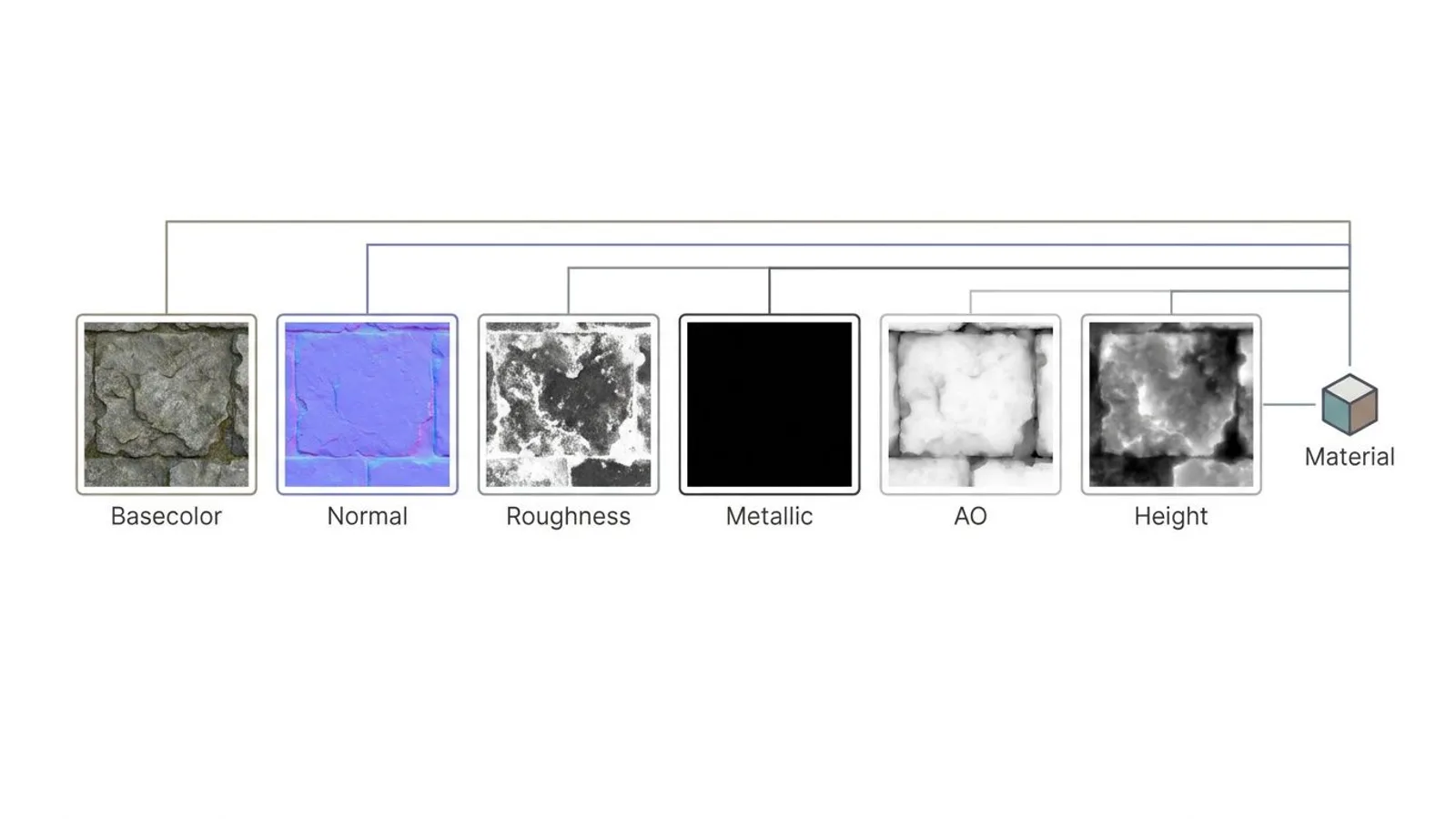
PBR textures (Physically Based Rendering) describe a surface through several grayscale and color maps – typically six: basecolor, normal, roughness, metallic, AO and height.
- Core maps
- Basecolor, Normal, Roughness, Metallic, AO, Height (6 total)
- Color space
- sRGB only for basecolor, every other map linear/Non-Color
- Resolutions
- 2K, 4K, 8K (2048 / 4096 / 8192 px)
- Reference
- glTF 2.0 (Khronos), Blender Manual
What PBR actually means
PBR stands for Physically Based Rendering. The core idea is simple: instead of treating a surface as one flat photograph, you break it down into separate properties that together describe how light behaves on it. How bright and in what color does the surface reflect light? How rough or smooth is it? Is it metal or not? Only once a game engine or renderer knows these properties individually can it calculate, in a physically plausible way, how the material looks under changing light – at noon just as convincingly as at dusk.
That's why a PBR texture doesn't ship as one image but as a set of images. Each map carries a single piece of information and plugs into its own slot in the material graph. We sell our tileable textures for FS25 mods in exactly this format, six maps per texture across three resolution tiers.
PBR isn't tied to one file format or one piece of software – it's a principle used across the industry today. Blender, Unreal Engine, Unity, Godot and the open glTF exchange standard all follow the same basic pattern of a base color plus a handful of material properties. Once you understand how the six maps work together, you can move a texture between any of these environments without starting from scratch.
The maps at a glance
Basecolor / Diffuse
The basecolor map (also called diffuse or albedo) holds the pure color of a surface, without baked-in shadows, highlights or ambient occlusion. For non-metal materials it roughly matches the color you'd see with your own eyes under neutral light. For metals, the same channel stores the metal's own reflection color instead – copper looks reddish in basecolor, steel looks closer to grey.
Normal map
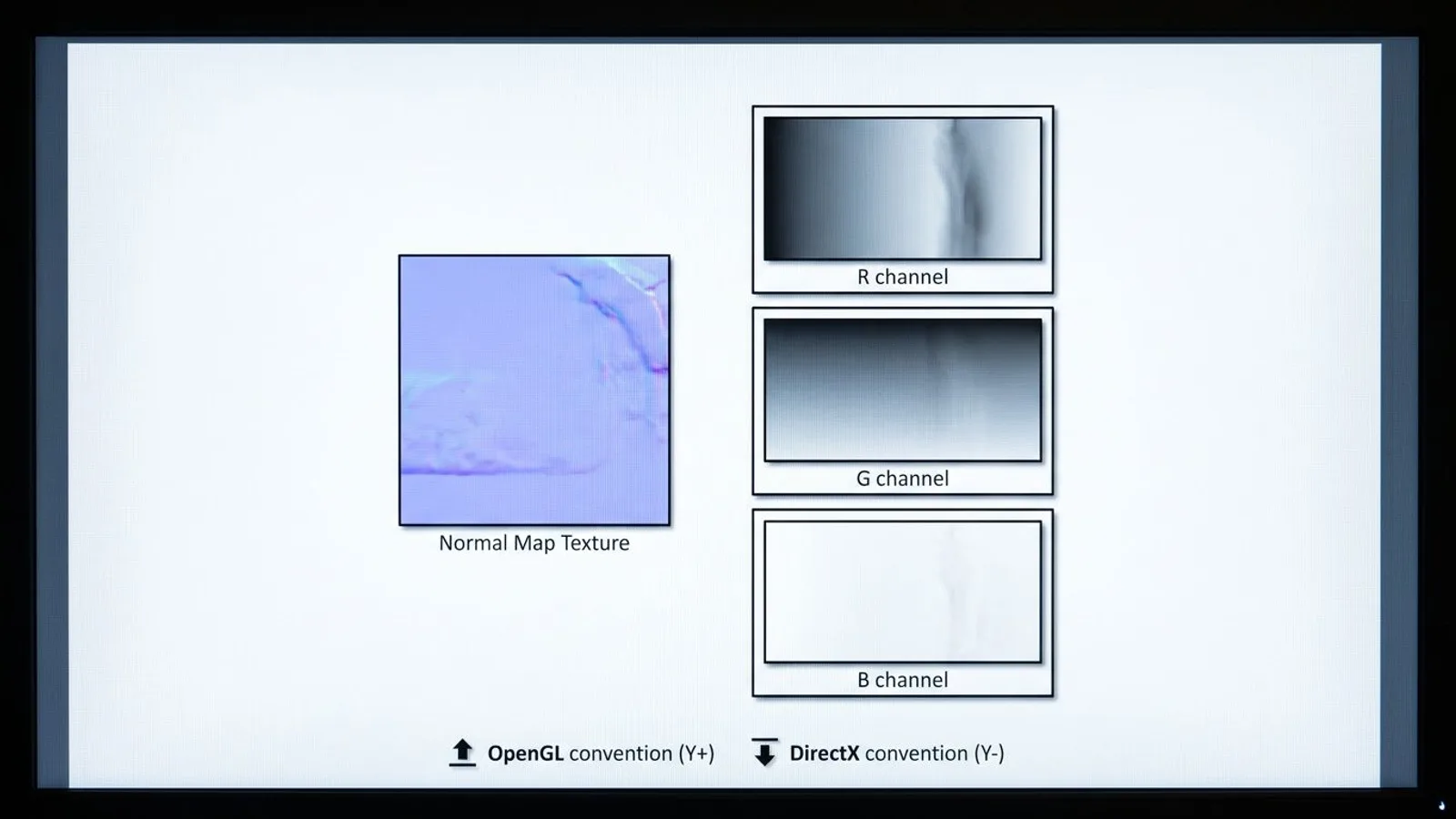
The normal map encodes small surface tilts as color values without changing the actual geometry. Red and green store the sideways tilt, blue stores the main depth. There are two conventions for how the green channel points: OpenGL and DirectX. Both store the same underlying data, only the green channel is inverted – load the wrong convention and dents look like bumps. We ship our normal maps in OpenGL convention, since that's what Blender expects out of the box, along with Unity and Godot. Unreal Engine is the best-known exception: it defaults to the DirectX convention instead, so the green channel needs inverting on import.
Most of our normal maps are also tangent-space normal maps: the stored directions relate to the local surface of each triangle rather than a fixed world axis. That makes them reusable – the same normal map works no matter how the object is rotated in the scene. The normal map guide walks through wiring one up correctly in Blender and other software.
 AI-generated
Roughness
The roughness map defines how strongly a surface scatters light: white means rough and diffuse, with a broad, weak highlight; black means smooth and mirror-like, with a small, sharp highlight. Wood, concrete or fabric usually sit in the mid-to-high range, while polished metal or wet surfaces sit much lower.
Metallic
The metallic map is nearly always pure black or white, with in-between values only appearing at edges or where dirt has built up. White marks pure metal, black marks everything else – wood, stone, plastic, skin. This map decides whether basecolor is treated as a diffuse color or as a reflection color: a non-metal reflects only a small part of the light directly, and the rest scatters back out as diffuse color, which is why roughness dominates its appearance. A metal has no such scattering – its entire reflection already carries the color stored in basecolor.
Ambient occlusion (AO)
The AO map stores how strongly a point is shadowed by nearby geometry – crevices, corners and tight folds come out darker. It doesn't replace real lighting; it only reinforces the small contact shadows that a real-time renderer would otherwise barely resolve.
Height / Displacement
The height or displacement map stores actual depth rather than just a visual impression. An engine can use it for parallax effects that make a surface look deeper without extra geometry, or for genuine vertex displacement on a sufficiently subdivided mesh. Our displacement maps ship as 16-bit PNG, because 8 bit often produces visible banding on smooth height gradients. The displacement map guide covers how to put it to use in Blender and elsewhere.
Packed maps: ARM and ORM
Roughness, metallic and AO are all plain grayscale images. Instead of storing them as three separate files, you pack them into the three color channels of a single texture – one channel, one piece of information. That saves storage and cuts down on the number of texture fetches an engine needs per material call. The most common order is ARM or ORM: red = AO, green = roughness, blue = metallic. That's exactly the order we use for our _arm files, and it matches the channel layout the glTF 2.0 specification defines for its metallicRoughnessTexture (green = roughness, blue = metalness). Engine-specific differences and a repacking script live in the ORM/ARM guide.
 AI-generated
How the maps work together at render time
When rendering a pixel, the engine samples all six maps at the same UV position and combines them with the light direction and the camera's view direction. Basecolor and metallic decide what color the reflected light takes on. Roughness controls how wide or sharp the highlight looks. The normal map bends the surface direction on a small scale, so bumps affect highlights and shadows even without extra geometry. AO dims the result further in cracks and corners. Height only comes into play if the engine or material explicitly requests parallax or tessellation – without that feature, the map simply sits unused. Unreal Engine's documentation on physically based materials describes exactly this interplay between metallic and roughness as the basis of its lighting calculation.
Metal/Roughness vs. Specular/Glossiness workflow
Two common PBR workflows reach the same goal with different maps. The metal/roughness workflow describes a surface through basecolor, metallic and roughness – three maps, two of them single-channel. The older specular/glossiness workflow instead separates a diffuse color, a colored specular map and a glossiness map; the specular map has to be RGB because it carries the metal's reflection color directly, whereas in metal/roughness that same color already lives in basecolor.
In practice, metal/roughness has become the default: glTF, Unreal Engine, Unity, Godot and Blender's Principled BSDF shader all expect it out of the box. Part of the reason is lower memory use: metallic and roughness are plain grayscale maps and pack neatly alongside AO into a single texture, while a specular map is a full color map with its own RGB footprint. Specular/glossiness still shows up in older assets, certain texturing-software export presets, or in FS25's own specular map format, which is closely related but ordered differently. For our textures and across this whole guide series, metal/roughness is the standard we ship.
Color space: sRGB only for color
The second common trap is color space. Basecolor maps store visible color and get saved in the sRGB color space – a screen displays sRGB values correctly as-is, while a renderer has to convert them back to linear space before doing any lighting math. Roughness, metallic, AO and height maps, on the other hand, hold no color at all, just plain numeric values between 0 and 1. Interpret them as sRGB by mistake, and gamma correction shifts exactly those values, leaving the material looking oddly too bright, too dark or too shiny.
Blender's manual explicitly requires the Non-Color setting instead of sRGB for the normal map texture, since the file looks like an image but actually stores numbers rather than color – the same principle applies in the software to every other data map. The glTF 2.0 specification goes further and explicitly requires a linear transfer function, not gamma correction, for its packed metallicRoughnessTexture. So the rule when importing any texture is simple: visible color → sRGB. Pure numeric values → linear or Non-Color.
The difference isn't cosmetic. sRGB compresses dark values non-linearly so they look more evenly graded to the human eye – but that exact compression distorts a number like a roughness value of 0.3 if it runs through the same curve by mistake. That's why the rule stays the same regardless of software: only what ends up as visible color on screen belongs in the sRGB color space.
Resolution: 2K, 4K or 8K
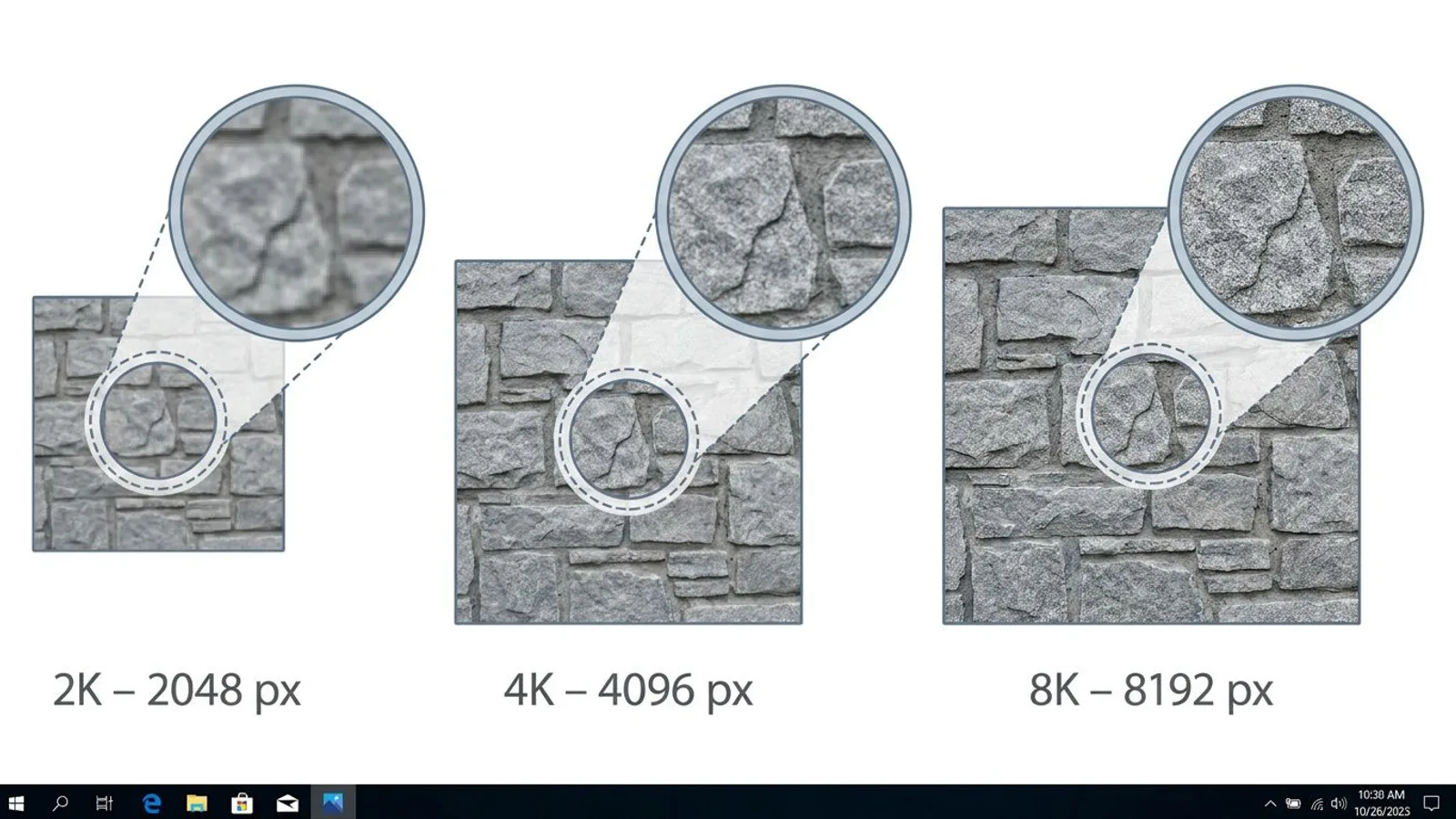
We ship every texture in three resolution tiers, 2048, 4096 and 8192 pixels edge length, as three separate downloads at one price. Which tier makes sense depends on camera distance and tile size:
| Resolution | Good for | Note |
|---|---|---|
| 2K (2048 px) | Background surfaces, heavy tiling, mobile targets | Smallest file size, lowest GPU memory footprint |
| 4K (4096 px) | Standard for most walls, floors, roofs viewed up close | Good balance of sharpness and memory use |
| 8K (8192 px) | Large tile sizes, hero surfaces right in front of the camera | Noticeably bigger files, only where the sharpness is actually needed |
If you lay your tileable textures onto a model in SketchUp first, the SketchUp guide covers the right tile size and resolution settings for that workflow.
Our six maps as an example
Here's what a PBR set looks like in practice, using our own file naming as the example:
| File suffix | Map | Format | Color space |
|---|---|---|---|
_diff |
Basecolor / Diffuse | JPG, quality 95 | sRGB |
_nor_gl |
Normal (OpenGL convention) | PNG, 16-bit | Linear / Non-Color |
_rough |
Roughness | JPG | Linear / Non-Color |
_ao |
Ambient Occlusion | JPG | Linear / Non-Color |
_disp |
Height / Displacement | PNG, 16-bit | Linear / Non-Color |
_arm |
Packed: R=AO, G=Roughness, B=Metallic | JPG | Linear / Non-Color |
There is no separate metallic file in our packages – the metal value already lives in the blue channel of the _arm file. For non-metal materials like wood or concrete, that channel is solid black anyway.
The format choices each have a concrete reason behind them. JPG compresses lossily but saves considerable space – for basecolor, roughness, AO and the packed ARM map, quality 95 is plenty, since small rounding errors in grayscale values barely register. Normal and displacement maps are far more sensitive to compression artifacts: even small deviations in a normal map's green channel create visible noise in highlights, and an 8-bit height gradient often shows clear banding on smooth slopes. That's why we ship exactly those two maps losslessly as 16-bit PNG.
 AI-generated
Common problems
| Problem | Cause | Fix |
|---|---|---|
| Material looks completely flat or washed out | Roughness or AO map set to sRGB instead of linear/Non-Color | Set the data map's color space to Non-Color or Linear |
| Recesses look like bumps | Normal map loaded in the wrong convention (DirectX instead of OpenGL, or the reverse) | Invert the green channel, or pick the matching normal map setting in the engine |
| Metal parts look grey instead of reflective | Metallic channel missing or wired incorrectly | Connect the blue channel of the _arm texture to the metallic input |
| Texture uses far more GPU memory than needed | 8K used everywhere, including small or distant surfaces | Match resolution to tile size and camera distance, see the table above |
Frequently asked questions
What does PBR mean for textures?
PBR stands for Physically Based Rendering. Instead of a single color photograph, a PBR texture describes a surface through several maps that each define a real light property, such as roughness or metalness, on its own. The engine uses these to calculate how light bounces off the surface under any lighting condition.
Do I always need all six maps?
No. Basecolor, normal and roughness cover most materials. Metallic only matters for metal surfaces, and AO and height are extra detail maps that many engines can skip or derive from the normal map instead.
Why is one map set to sRGB and another isn't?
Basecolor maps store visible color, so they are saved in the sRGB color space and converted back before lighting is calculated. Roughness, metallic, AO and height maps store pure numeric values instead of color – they need to be read as linear or Non-Color, otherwise gamma correction shifts the values.
What's the difference between 2K, 4K and 8K?
The number gives the texture's edge length in pixels: 2K = 2048 px, 4K = 4096 px, 8K = 8192 px. Higher resolution looks sharper up close but also means a larger file and more GPU memory.
What is a packed ARM or ORM texture?
A packed texture places three grayscale maps into the three color channels of one file: red, green and blue each carry their own piece of information instead of a color value. That saves storage and texture fetches compared to three separate files.