3D File Formats Compared: glTF/GLB, FBX, OBJ, and i3d
GLB, FBX, OBJ, and i3d store 3D models with very different completeness: glTF/GLB and FBX carry materials and animation, OBJ ships without animation or PBR materials according to Godot's own documentation, and i3d is the GIANTS Editor's XML-based format for FS25.
- In short
- OBJ only stores geometry and simple materials, never animation
- Opening GLB on Windows
- Blender is the reliable route – Windows' 3D Viewer app left the Store on 1 July 2026
- Opening FBX on Windows
- disabled by default in 3D Viewer since Feb 2024, and the app itself is gone from the Store since July 2026
- i3d
- XML-based GIANTS Editor format, right-handed coordinate system
Four formats, four different jobs
The first time you download a 3D model, you run into a handful of file extensions that all mean "some kind of 3D," yet carry wildly different amounts of information. The four below show up most often, both in our own packages and across most other tools.
Part of the reason several formats coexist at all comes down to when each one was born. OBJ dates back to the 1980s, long before animation or PBR materials were even a consideration. FBX arrived in the 1990s to move data between animation packages. glTF, by contrast, is a deliberately young standard built for real-time use, and i3d was built by GIANTS specifically for its own engine rather than for general interchange. That history also explains why axis orientation and units differ from format to format: a real industry-wide standard for that only arrived with glTF, and everything older simply followed whatever the exporting software assumed.
glTF and GLB
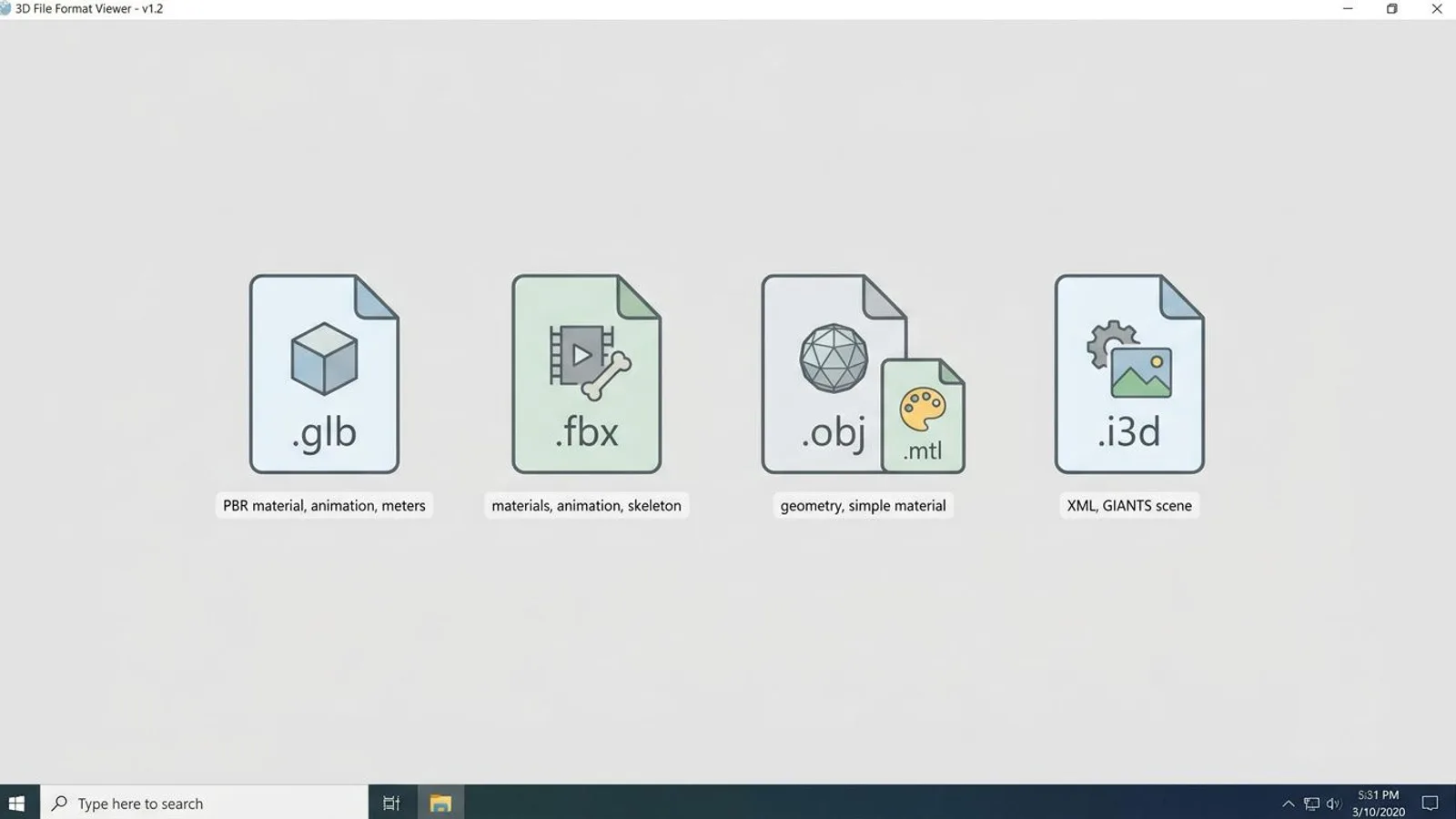
glTF (GL Transmission Format) is an open standard from the Khronos Group, the same organization behind OpenGL and Vulkan. According to the official specification, glTF 2.0 locks in both the coordinate system, Y-axis up, and the unit, meters, and ships with a defined PBR material model, the so-called metallic-roughness model. GLB is the binary version of the same format: geometry, materials, textures, and animation data all live together in a single file, which makes sharing far simpler since no separate texture files need to travel alongside it.
FBX
FBX (Filmbox) is a proprietary format owned by Autodesk, originally created by Kaydara. It carries geometry, materials, and above all animation and skeletons, which is exactly why it became the go-to exchange format between different 3D applications, from character rigs to simple props. One recurring snag is units: Autodesk's own FBX exporter documentation notes that saving through MotionBuilder automatically converts values to centimeters, while other tools work in meters. Because FBX doesn't lock in a single fixed unit system and instead depends on whichever software exported it, that's one of the most common sources of errors when a file moves between programs. Unlike glTF, FBX also has no single binding specification for PBR materials, so each program brings its own idea of material channels along on export.
OBJ and MTL
The Wavefront OBJ format is one of the oldest widely-used 3D formats, and according to Autodesk's own 3ds Max documentation, it stores exclusively geometry descriptions, while the companion MTL file carries the material data. Godot's official documentation puts the practical reality bluntly: OBJ and MTL are supported, but "pretty limited," with no support for pivots, skeletons, animation, or PBR materials. That's often fine for a single, static object with a simple material, but not much beyond that. It's also worth knowing that an OBJ file without its matching MTL file still shows the raw geometry, just with no material at all, usually as a flat gray object — a frequent point of confusion when someone sends an OBJ file and forgets the MTL.
 AI-generated
i3d (GIANTS)
The i3d format is the GIANTS Editor's native scene format and, by extension, the format behind Farming Simulator 25. According to the official GDN documentation, I3D is an XML-based file format with its own XML schema. A valid i3d file can contain up to seven parts: textures, materials, shapes, dynamics, scene graph, animation, and user data, and depending on the application, individual parts can be left out. Per GDN, the format uses a right-handed coordinate system and supports animation sets, keyframes, and morph targets alongside geometry and materials. Unlike glTF or FBX, almost nobody writes an i3d file by hand or edits one directly as text: it comes out of the official GIANTS exporter plugins for Blender or Maya.
Side-by-side comparison
| Format | Materials | Animation | Units / axes |
|---|---|---|---|
| glTF / GLB | Fixed PBR material model (metallic-roughness) | Yes | Meters, Y-axis up (mandated by the specification) |
| FBX | Materials present, representation depends on the exporting software | Yes, including skeletal animation | Depends on the exporting software, often centimeters |
| OBJ + MTL | Simple materials via MTL, no PBR parameters | No (not supported, per Godot's documentation) | No fixed convention, depends on the source software |
| i3d (GIANTS) | Multi-textures, normal/specular maps, lightmaps | Yes, including keyframes and morph targets | Right-handed coordinate system (per GDN) |
Opening a GLB file on Windows
For GLB files, the 3D Viewer app from the Microsoft Store used to be the obvious route on Windows, since it effectively favored GLB anyway: every other imported format got converted to glTF internally before it was even displayed. Per Microsoft's own documentation on deprecated Windows features, Microsoft marked 3D Viewer deprecated in February 2026 and removed the app from the Microsoft Store on 1 July 2026. Existing installations keep working, per Microsoft, but can no longer be freshly downloaded after that date; as a viewing-only replacement, Microsoft points to the web-based Babylon.js Sandbox on that same page. If you need to actually work on the model, say to adjust materials, you're better off opening it directly in a free tool like Blender, which imports GLB natively and doesn't depend on the Windows-native viewer at all.
Opening an FBX file on Windows
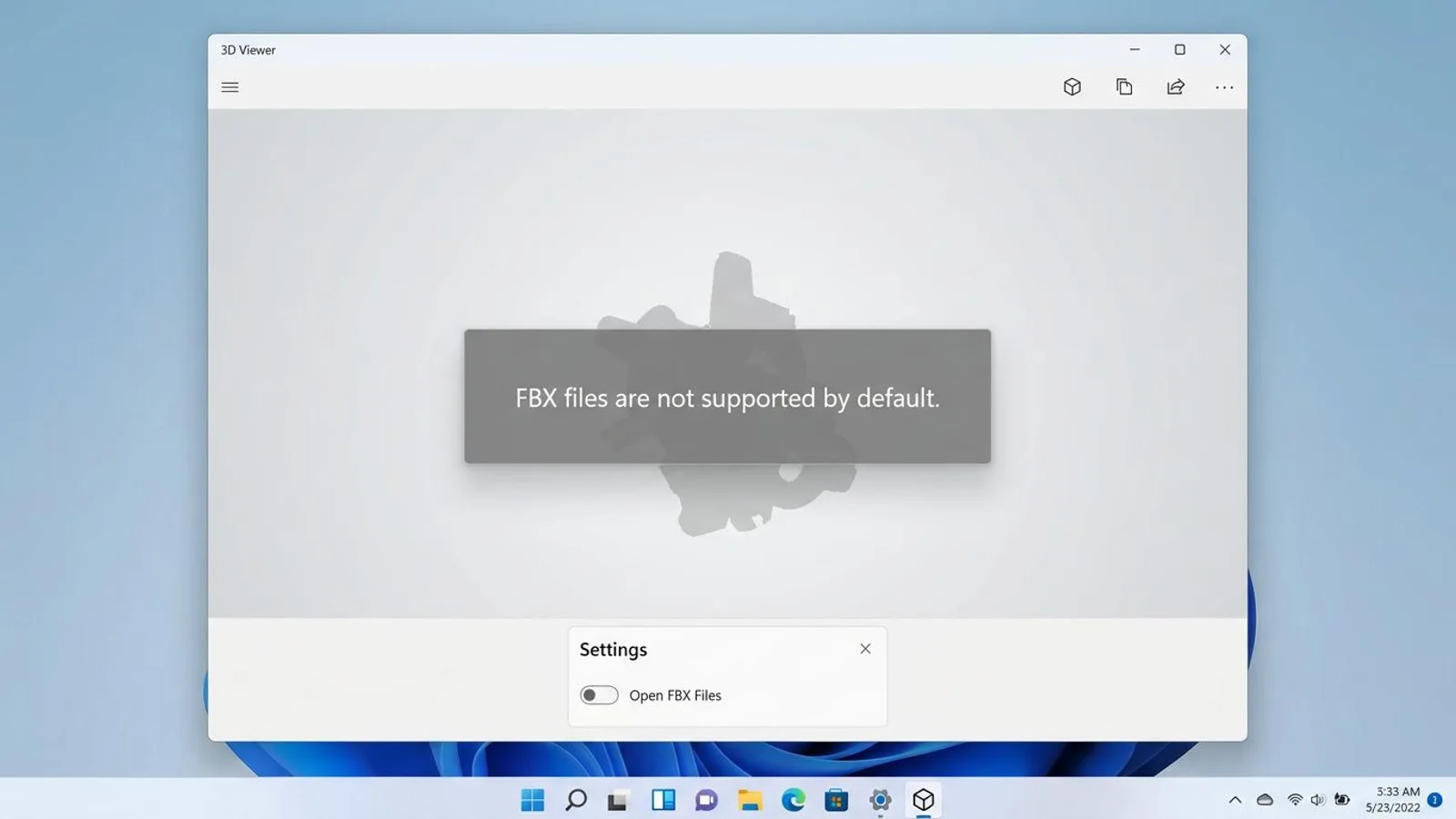
FBX needed extra caution already, and 2026 added a second reason. Per Microsoft's official support page, 3D Viewer's FBX support was disabled by default back in February 2024 following a security vulnerability; trying to open an FBX file since then produces a message saying FBX files aren't supported by default. In an existing install, Microsoft's documentation says you could re-enable it through the app's settings and the "Open FBX Files" toggle. The bigger picture has since changed, though: Microsoft marked 3D Viewer itself deprecated in February 2026 and removed the app from the Microsoft Store on 1 July 2026, so it can't be installed on a new device at all anymore. For most people, the simpler route stays opening the file directly in Blender, which has shipped FBX import for years, runs independently of the Windows-native viewer, and needs no setting changed at all.
 AI-generated
Which format fits which software
For the GIANTS Editor and Farming Simulator 25, there's no way around i3d, produced through the official exporter plugins from Blender or Maya. FBX or OBJ can't be imported directly.
In Unity, FBX and OBJ are both officially documented as natively supported formats, alongside DAE, 3DS, and DXF. glTF isn't listed as a core format in Unity's classic manual and needs an additional package.
In Godot, the official documentation explicitly recommends glTF 2.0 as the preferred format, fully supports both its text and binary (GLB) variants, and imports .blend files by quietly calling Blender itself in the background. FBX has also been on Godot's official format list since Godot 4.3, by default through the built-in ufbx library with no extra install required; Godot's own documentation still recommends reaching for one of the other listed formats where that's an option.
Blender, for its part, reads and writes practically all four formats, which is exactly why it works so well as a central hub whenever a model needs to move between different programs.
What's inside our own 3D model packages
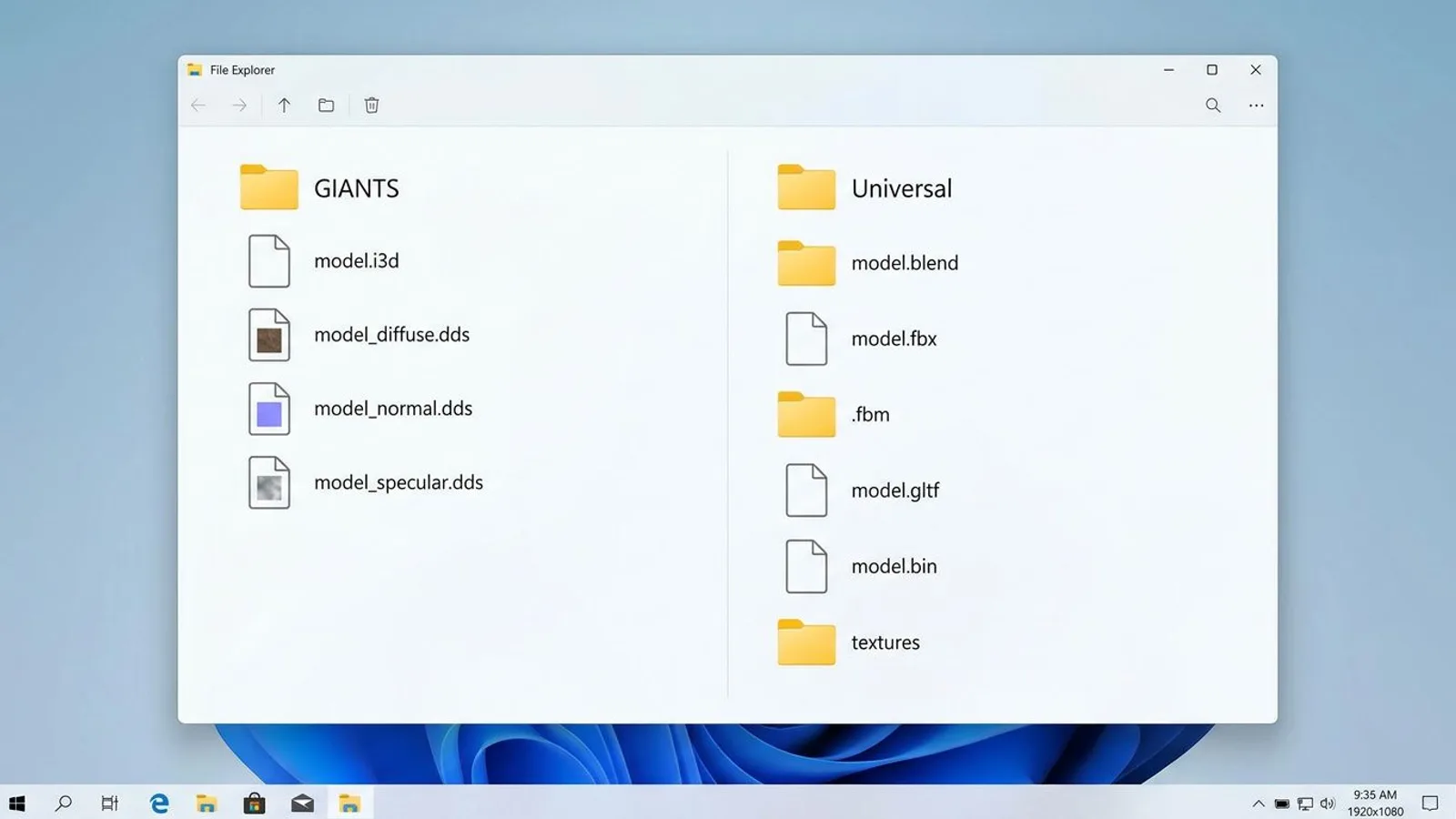
We ship our 3D models in two separate package parts, because no single format serves every target program equally well. The GIANTS part contains pure i3d: shapes with a collision box, no placeable wrapper, meant to be built into your own mod i3d, plus the matching textures already converted to DDS in the formats the GIANTS pipeline expects. The second part covers everything else and ships as a .blend file with textures packed in, an .fbx with textures in a companion .fbm folder, and a separate .gltf with its own .bin file and a textures folder. So anyone not working in the GIANTS Editor, but building instead in Blender, Unity, or Godot, finds a properly prepared variant for that exact program in the same download, with no format conversion needed on their end.
That split follows the same logic as the comparison table above: the GIANTS Editor only gets i3d, because it simply can't read anything else. Every other program gets more than one option, since Godot's own docs favor glTF even though it also reads FBX natively since version 4.3, while Unity supports both out of the box.
 AI-generated
The short version: what to try first
When in doubt, a simple order of preference covers most cases: for the GIANTS Editor and FS25, always i3d through the official exporter plugins; for everything else, try glTF/GLB first if the target software supports it, since units and axes are locked in by the spec and cause the fewest surprises. Reach for FBX once animation, a skeleton, or a program without glTF support enters the picture. OBJ stays the fallback for a single, static object when nothing else is available.
Common problems
| Problem | Cause | Fix |
|---|---|---|
| Model imports roughly a hundred times too big or too small | The FBX or OBJ file uses a different base unit than the target program, often centimeters instead of meters | Match units explicitly on import, or reset the object's scale to 1 after importing |
| Model lands on its side or upside down after import | The source software uses a different up-axis (Z-up instead of Y-up) than the target software | Pick the matching axis orientation for the target program on export; glTF forces Y-up per its specification regardless |
| Textures are missing or show up as pink or gray placeholder surfaces | The FBX or OBJ file's texture paths point to a folder that didn't come along when the file was moved | Always keep companion folders like .fbm for FBX, or the referenced image files for OBJ/MTL, together with the model file |
| A GLB file won't open on Windows even though 3D Viewer is installed | The file is corrupted, or it's actually a text-format .gltf with missing external files rather than a self-contained .glb |
Re-export the file from the source; for .gltf, keep every referenced file (.bin, textures) in the same folder |
Frequently asked questions
How do I open a GLB file on Windows?
The simplest route is a free 3D tool like Blender, which imports GLB natively. Windows' own 3D Viewer app used to display GLB directly, but Microsoft marked it deprecated in February 2026 and removed it from the Microsoft Store on 1 July 2026; existing installs keep working, per Microsoft, but can no longer be freshly downloaded.
How do I open an FBX file on Windows?
Most reliably by opening it directly in Blender, which has supported FBX import for years. Per Microsoft's own support page, 3D Viewer disabled FBX support by default back in February 2024 after a security issue, and the app itself has since been removed from the Microsoft Store on 1 July 2026, so it can't even be installed on a new device anymore.
FBX vs. OBJ: what's the actual difference?
FBX can store animation, skeletons, and more complex materials. OBJ only stores static geometry and simple material data through a companion MTL file, with no animation support at all.
GLB vs. FBX: which one should I use?
GLB is the binary form of the open glTF standard, with a fixed PBR material model, meters as the unit, and Y-axis up. FBX is a proprietary Autodesk format whose material representation and default unit can vary depending on which software exported it.
Which format does the GIANTS Editor need for Farming Simulator 25?
The GIANTS Editor itself works with its own i3d format, an XML-based scene format. Models from Blender or Maya get exported to i3d through the official GIANTS exporter plugins, not imported directly as FBX or OBJ.