Importing 3D Models into the GIANTS Editor: Bringing an i3d into Your Scene
You bring an i3d model into your own scene through File, Import, place it under the right parent in the Scenegraph, and add a collision box and placeable wrapper yourself if your model only ships the bare object.
- Version
- GIANTS Editor 10.0.13 (FS25 from patch 1.20.0)
- Vertex limit
- 270,772 vertices per shape
- Our GIANTS packages contain
- i3d with shapes and collision box, no placeable wrapper
- Time
- about 15 minutes
What is inside our 3D model packages
A 3D model for Farming Simulator 25 is rarely a single file. Between the model a 3D application exports and the object that ends up in-game sits the export through GIANTS' own tools, and that is exactly where our packages start. We ship every one of our 3D models for FS25 in two parts, because two different groups of people work with them.
The GIANTS part contains a finished i3d with the visible shapes and its own collision box, plus the matching DDS textures: <name>_diffuse.dds (BC1, sRGB, 2048²), <name>_normal.dds (BC5, linear, OpenGL convention) and <name>_specular.dds (BC3, linear), along with brand_fsmodworks.dds as a brand decal. This i3d stays deliberately lean: shapes and collision only, no placeable wrapper. It is meant to be built into your own placeable or mod i3d, not loaded as a standalone in-game object.
The second part is for anyone who wants to keep working in a 3D application first: a .blend file with packed textures, an .fbx with textures in its accompanying .fbm folder, and a .gltf with a separate .bin file and textures in a textures/ folder. Textures here follow the ORM naming scheme: _diff_8k, _nor_gl_4k, _orm_4k (R AO, G roughness, B metallic), plus separate _rough_4k and _metal_4k files for applications that don't read a packed ORM map.
Bringing the i3d into your scene
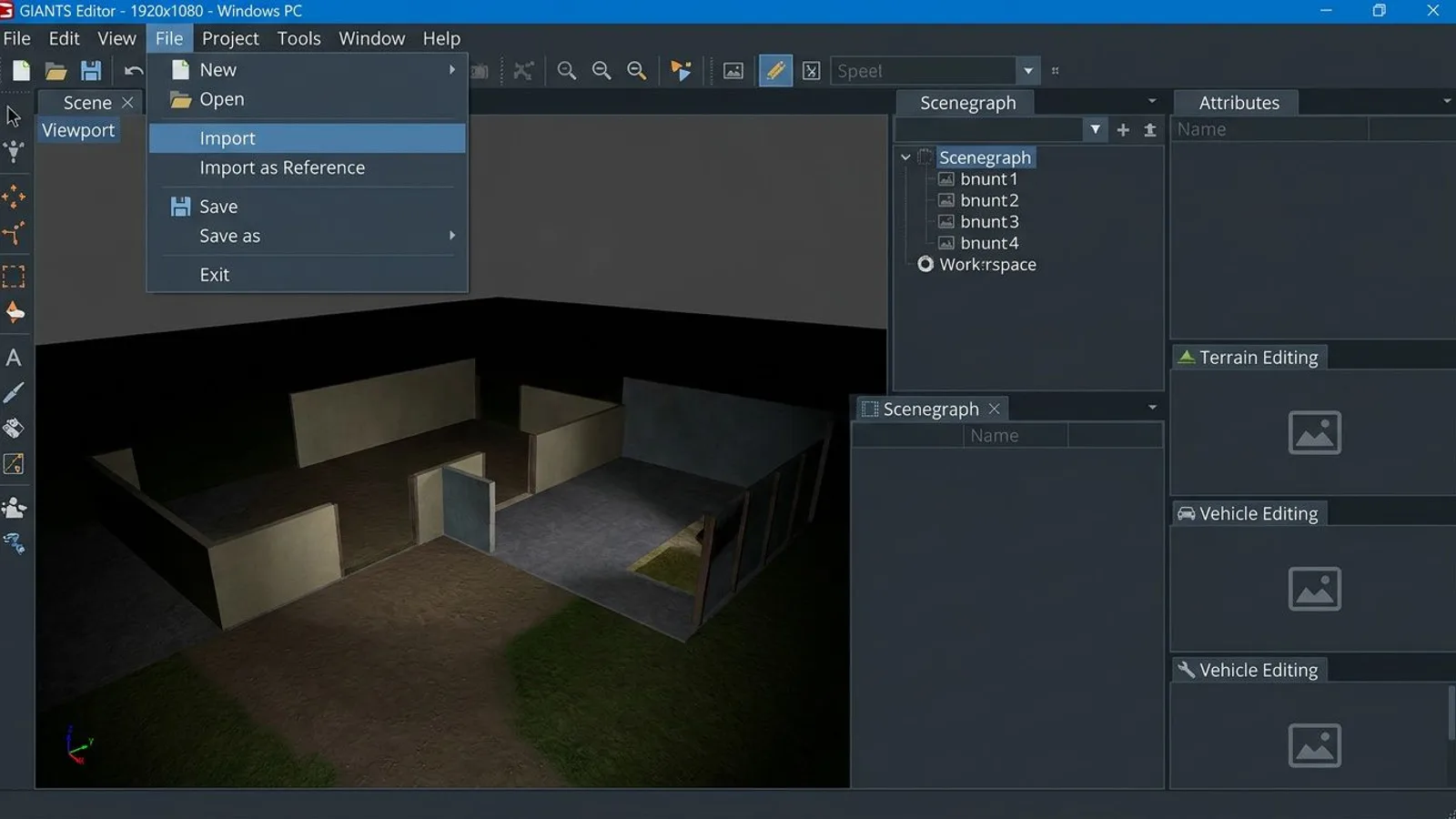
The GIANTS Editor's File, Open always loads a complete scene and replaces whatever is currently open. To bring an additional model into an existing scene without overwriting it, use File, Import instead. This adds i3d or fbx files to the currently open scene rather than replacing it. The Import as Reference option additionally links the file so that later changes to the original are automatically reflected in the imported copy.
Step 1: Open your own scene
Open your own placeable or map i3d in the GIANTS Editor, the way you normally edit it.
Step 2: Import our model
Go to File, Import and select our <name>.i3d. The shapes appear as a new entry in the Scenegraph Panel, and your existing scene stays intact.
 AI-generated
Step 3: Place it in the right hierarchy
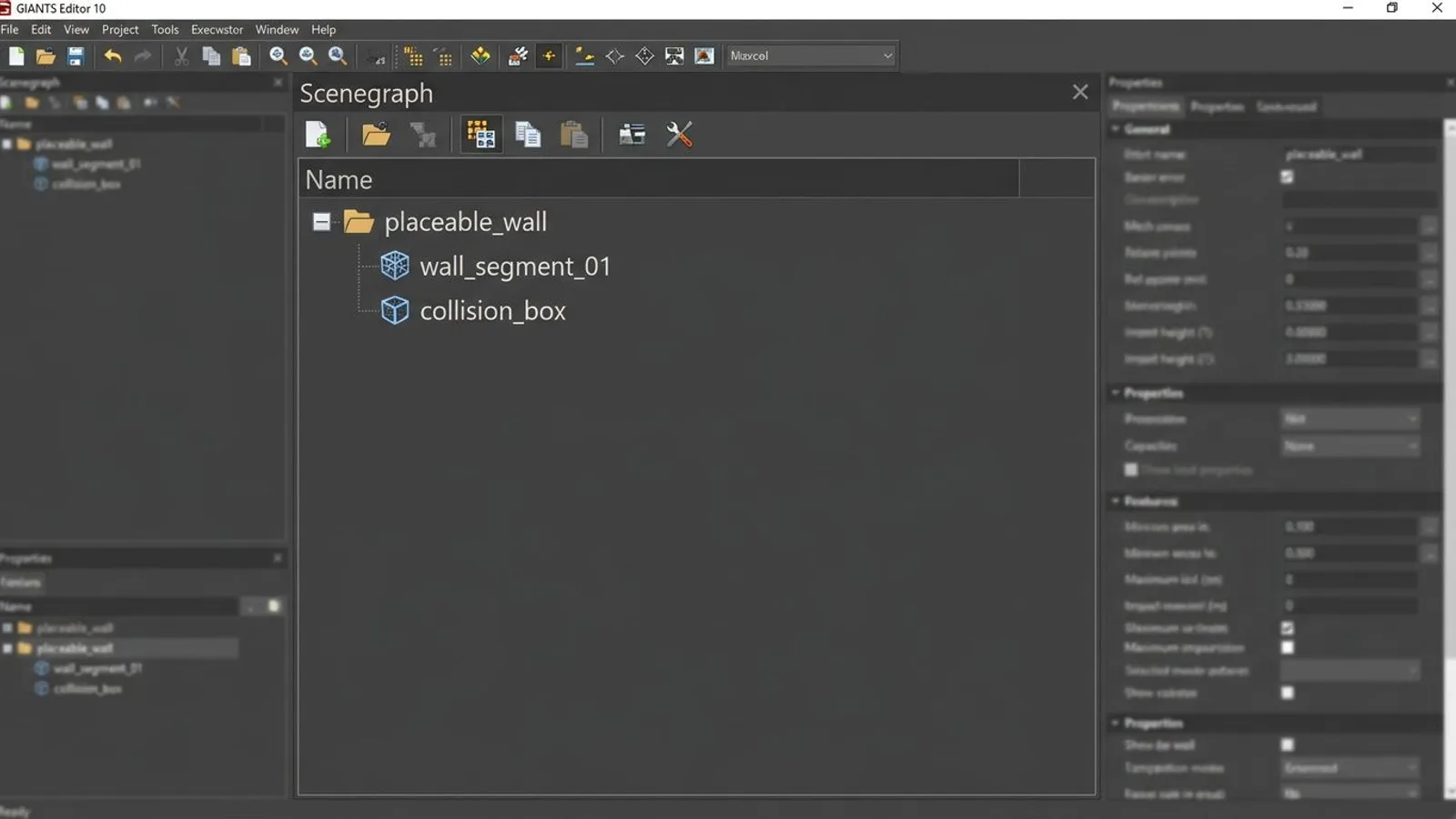
Move the imported object under the correct transform group in the Scenegraph Panel. Select the object, go to Edit, Cut, then select the target parent group and go to Edit, Paste. Ctrl+X to cut and Ctrl+V to paste work the same way: according to GIANTS' own documentation, pasted objects always become children of whatever object is currently selected in the Scenegraph.
 AI-generated
Collision box and nonRenderable
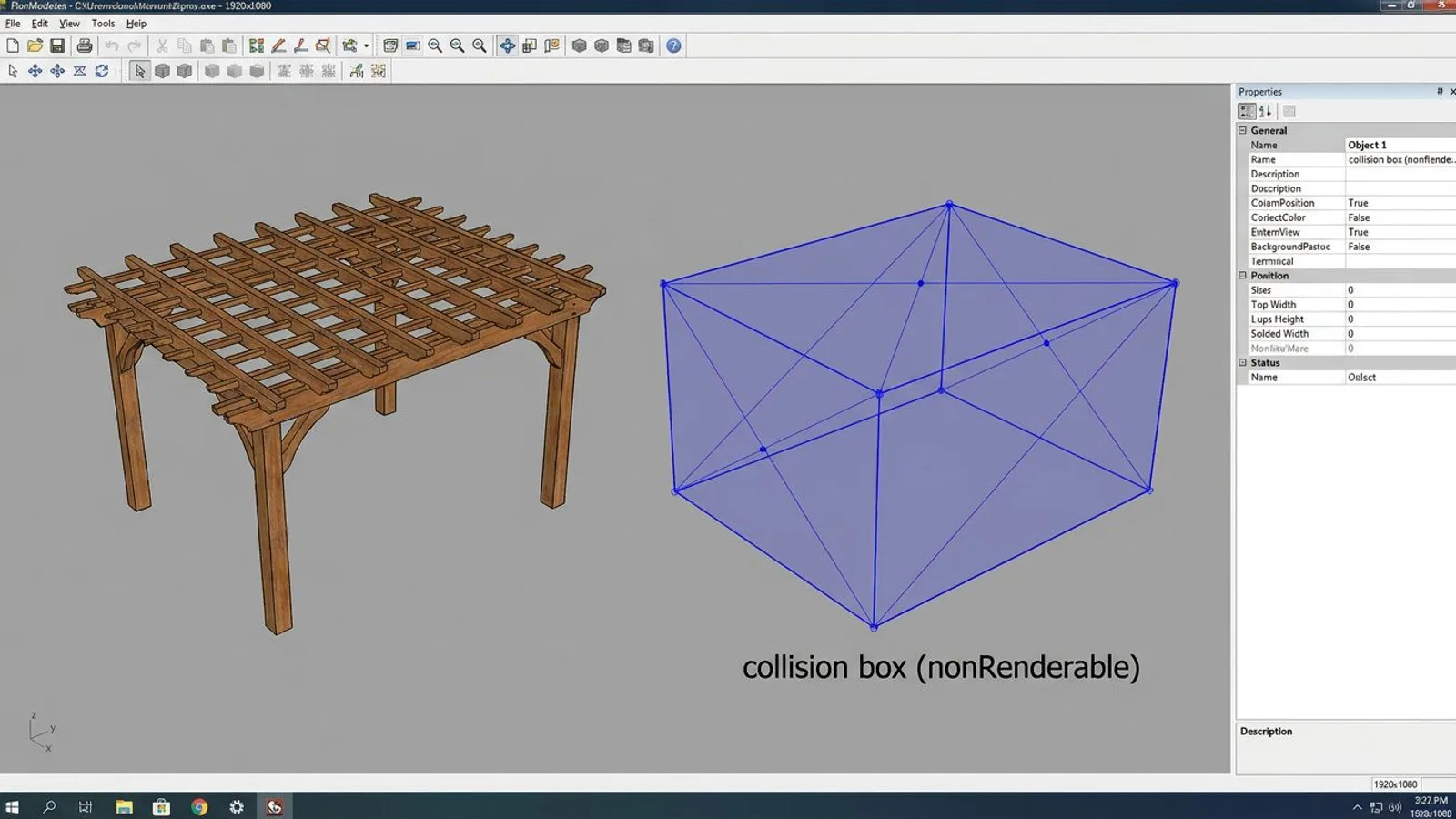
Our collision box is its own shape, marked nonRenderable: it takes part in physics in-game but never shows up in the rendered image. It is usually simpler than the visible model, a rough box instead of the detail of a wood panel, for example, so the physics calculation doesn't cost unnecessary performance in-game. When you build our model in, this collision box stays intact as its own shape. You don't need to rebuild it, but you should be able to find it in the Scenegraph and avoid deleting it by accident while only editing the visible geometry.
The related settings sit in the Attributes Panel under the Transform tab once you select the collision box in the Scenegraph. There you enable the Rigid Body option, which then reveals a separate Rigid Body tab where mass, friction and collision behavior are set. This is also where you check whether our collision box is marked as a static rigid body, which is standard for a fixed object like a wall or a fence. A movable object would instead need a dynamic rigid body, which our models don't ship, since they are pure placeable building blocks.
 AI-generated
Orientation, origin and vertex limit
Our i3d models use Y-up, with the bottom sitting at Y = 0. Place the model directly on the ground of your map or placeable, and it lands at the right height without extra adjustment.
Every single shape in our models stays under the GIANTS limit of 270,772 vertices. That limit applies per shape, not to the whole i3d: a model made of several shapes can have far more vertices in total, as long as no individual shape crosses the limit. If you build our model into a larger object of your own and merge several shapes into one in the process, check the vertex count of the newly merged shape before saving.
Our own build script checks this limit automatically before every export, because an oversized shape often still opens in the GIANTS Editor but no longer saves cleanly. Anyone combining their own models with ours, say a high-resolution roof from another package sitting on our wall segments, should not skip this check, especially with organic shapes made of many small faces, which generate more vertices than the raw polygon count suggests.
Keep texture paths relative
Our i3d references its DDS textures through relative paths inside its own folder. If you move the model into your mod's folder structure, move the matching texture files along with it in the same step, or the GIANTS Editor won't find the textures next time you open it and will show the default error texture instead. The simplest approach is to keep the model and its textures in one shared subfolder that you copy into your mod folder as a whole, instead of spreading individual files around.
That still applies if you move the model again later inside your own mod folder, for example because you collect several objects in one shared models directory. In that case, open the i3d in the GIANTS Editor again and check in the Attributes Panel whether the texture paths still point to files that exist, before testing the mod in FS25 again.
The placeable wrapper: what our packages deliberately leave out
A finished, purchasable placeable in FS25 needs more than just an i3d with shapes. That includes a storeItem entry in the modDesc.xml that makes the object visible in the shop, a placeable.xml with testAreas that defines where the object can be placed, and storeData with details like price or category. Whether a placeable can be bought together with farmland is also controlled by an entry in the placeable.xml; the exact structure changes from version to version, so a current example placeable from the base game or the SDK is the most reliable way to check what your installed version expects.
Our 3D model packages deliberately leave this wrapper out, because they are meant as a building block for your own placeable, not as a finished end product. You decide which placeable, which category and what price the model ends up with, and you skip the work of cutting someone else's wrapper back out.
Common problems
| Problem | Cause | Fix |
|---|---|---|
| Model disappears after File, Open | Import was confused with Open, replacing the current scene | Use File, Import instead of File, Open to add a model to an existing scene |
| Textures missing after moving into the mod folder | Only the i3d was moved, the DDS files stayed behind | Move the model folder and its textures together, keep relative paths intact |
| Object floats or sinks into the ground | Y-origin of the imported object was ignored | Align the model at its bottom (Y = 0), not at the center of its bounding box |
| Saving fails on a merged shape | Vertex count of a merged shape exceeds 270,772 | Split the shape before merging, or reduce its detail level |
For building the DDS textures for a model like this yourself, see our FS25 textures in the GIANTS Editor guide. Common save and testing error messages are collected in our GIANTS Editor error guide. For i3d, FBX and glTF as file formats in general, see our 3D file formats overview. A sample model built with exactly this package structure is our Modern Pergola.
Frequently asked questions
What does an FS Modworks 3D model package contain?
A GIANTS part with a finished i3d, a collision box and matching DDS textures, plus a Blender/FBX/glTF part for work in a 3D application.
How do I bring an i3d model into my own scene in the GIANTS Editor?
Use the File menu and choose Import to add the i3d to the currently open scene, instead of File, Open, which replaces the whole scene.
Why doesn't your model include a placeable wrapper?
Our GIANTS packages are meant to be built into your own mod i3d. storeData, testAreas and the placeable.xml only belong on the finished, purchasable object in your mod.
What is the collision box in your models?
An invisible shape marked nonRenderable that handles physics and collision in-game without being rendered.
What is the vertex limit per shape in the GIANTS Editor?
In our exports, the limit sits at 270,772 vertices for a single shape. Above that, the shape can no longer be saved.