How to Mod FS25: Tools, Mod Structure and Your First Test
An FS25 mod is a folder with a modDesc.xml, packed into a zip whose filename uses only A-Z, a-z, 0-9 and underscores, placed in the mods folder under Documents/My Games/FarmingSimulator2025/mods.
- Version
- GIANTS Editor 10.0.13 (FS25 from patch 1.20.0)
- Tools
- GIANTS Editor, Texture Tool, Blender/Maya exporters, TestRunner, VS Code extension
- Mods folder (Windows)
- Documents\My Games\FarmingSimulator2025\mods
- Time to first test
- about 1 hour for a simple mod
Which tools actually matter for FS25 modding
Anyone building a first mod for Farming Simulator 25 runs into a confusing mix of third-party tools, outdated tutorials and official software online. The safe starting point is the GIANTS Developer Network, or GDN: that's where GIANTS Software provides the entire toolchain itself, free, with a simple account. Which of these tools you actually need depends on whether you're building a plain object, a vehicle, or a mod with its own scripting:
| Tool | What it's for |
|---|---|
| GIANTS Editor 10.0.13 | Build i3d scenes, placeables, collisions, terrain |
| GIANTS Texture Tool | Convert PNG/JPG to DDS, ships inside the editor folder at tools/textureTool.exe |
| Blender Exporter Plugins 10.0.2 | Export models from Blender as i3d |
| Maya Exporter Plugins 10.0.1 | Export models from Maya as i3d |
| TestRunner 0.9.20 | Check a mod folder for errors before upload |
| VS Code – Farming Simulator IDE Support | Write and debug Lua scripts, replaces the discontinued GIANTS Studio |
| Icon Generator 10.0.4 | Generate shop icons from a 3D model |
The VS Code extension is a newer addition here: according to GIANTS' own documentation, it turns Visual Studio Code into a full development environment for script mods, replacing the older GIANTS Studio as the recommended tool for that job. You don't need it for a plain placeable without its own script, but you do once a mod needs its own game logic in Lua.
All of these downloads live on the GDN and require a free account. Version numbers change with every major patch, so it's worth checking the downloads page before starting a new project.
For a simple placeable like a textured wall or a fence, the GIANTS Editor and Texture Tool alone are enough. If a model comes from Blender or Maya, the matching exporter joins the toolchain, writing an i3d straight out of the scene that the GIANTS Editor can open. TestRunner comes in shortly before release: according to GIANTS Software, it scans the unpacked mod folder for duplicate files, wrong texture formats and invalid XML files, and reports them through the command line instead of making you hunt for the bug in-game. The VS Code extension only matters once your own Lua scripts enter the picture, for example a vehicle with a custom function or an animated placeable.
Structure of a mod
At its simplest, an FS25 mod is a folder with a modDesc.xml at its root and the files that XML points to: i3d models, DDS textures, an icon and, if needed, Lua scripts. The modDesc.xml is the only file that has to sit in a fixed place, directly in the top folder. Everything else can live in subfolders like models/ or textures/, as long as the paths in the XML match.
Step 1: Set up the folder structure
Create a folder named after your mod, for example FS25_MyFirstObject, with subfolders for models and textures inside it.
Step 2: Write the modDesc.xml
The modDesc.xml describes your mod's author, version, title, description and icon. A basic skeleton with fields that show up again and again in real modDesc files looks like this:
<?xml version="1.0" encoding="utf-8" standalone="no"?>
<modDesc descVersion="XX">
    <author>FS Modworks</author>
    <version>1.0.0.0</version>
    <multiplayer supported="true" />
    <title>
        <de>Mein erstes Objekt</de>
        <en>My first object</en>
    </title>
    <description>
        <de>Ein einfaches Placeable zum Testen.</de>
        <en>A simple placeable for testing.</en>
    </description>
    <iconFilename>icon_myFirstObject.dds</iconFilename>
</modDesc>
XX here is deliberately not a real value, it's a placeholder: the exact number after descVersion changes with the game's patches, and recent real-world values have ranged from around 90 to over 100 depending on the patch. The most reliable source for it isn't a forum post or this guide, it's the sample mod that ships with your installed version of the GIANTS Editor or the mod SDK. Copy the number from there instead of reusing a fixed version number from a guide written for an older patch. Get it wrong, and FS25 often won't tell you right away, but only later, when you upload to the ModHub or through a cryptic error in log.txt, not during your first local test.
The multiplayer supported attribute decides whether your mod works in multiplayer. For a plain placeable without its own script, you can usually set this to true. Once custom Lua code is involved, it depends on whether that code synchronizes cleanly over the network.
Step 3: Pack the mod as a zip
A plain folder in the mods directory is enough for testing. For release, you pack the contents as a zip. What the filename is allowed to look like matters more than it first seems, as the next section shows.
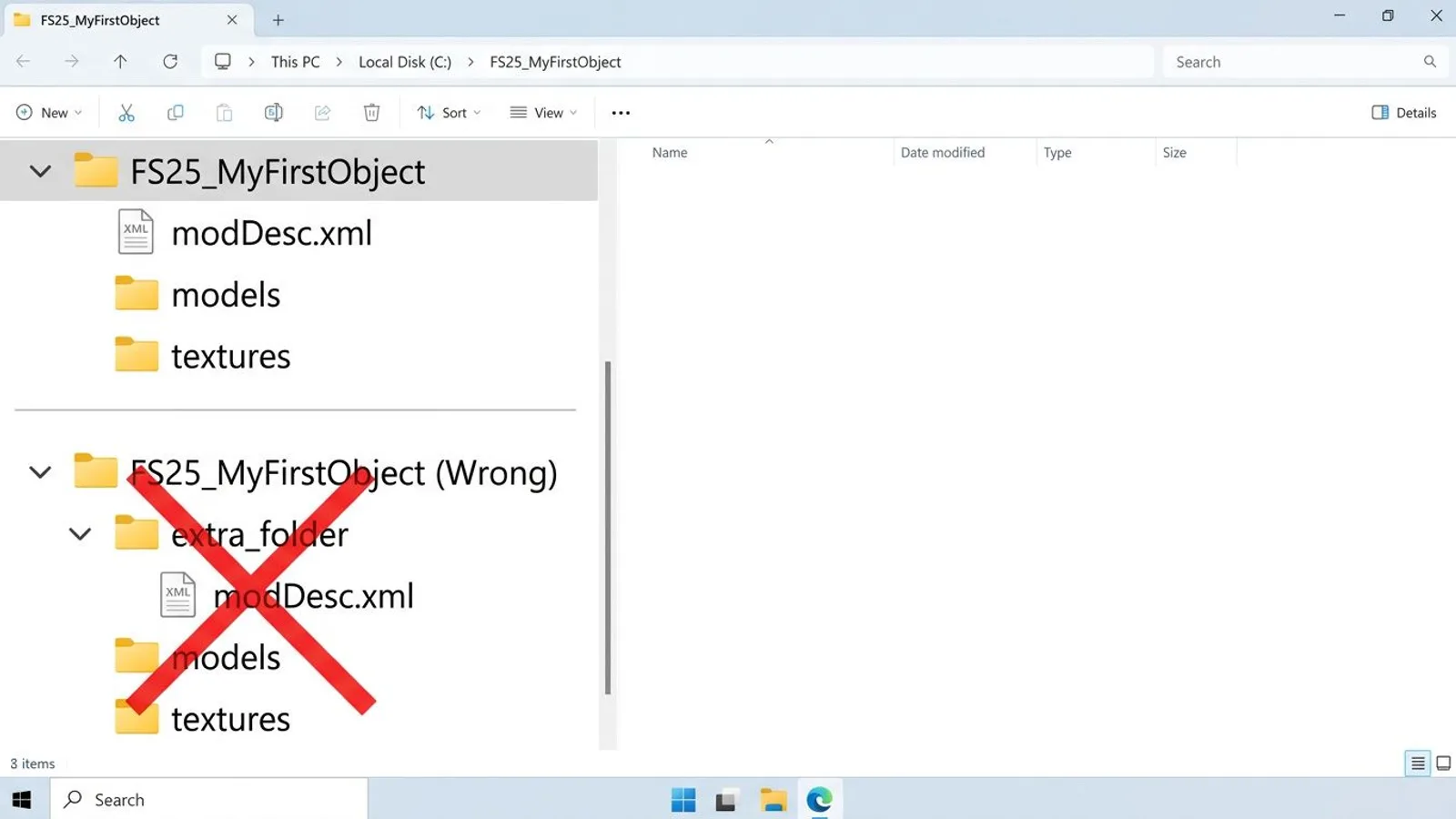
Make sure the modDesc.xml sits directly at the top level of the zip and isn't nested inside an extra folder named after your mod. That happens easily when an archiving tool automatically wraps the contents in a folder matching the zip's name: the game then can't find the modDesc.xml, even though every file is actually there.
 AI-generated
The mods folder on Windows
FS25 puts its mods folder by default under Documents\My Games\FarmingSimulator2025\mods in the Windows user profile. You copy both finished zip files and, for active development, a plain folder with your modDesc.xml into that same location. The game recognizes both, as long as the modDesc.xml sits directly inside the zip or the folder, not nested one level deeper.
During active development, the plain folder is by far the more practical option: save a change to the model or the modDesc.xml, restart FS25 or reload mods through the console, and the change shows up right away, without repacking a zip every time. Only for release, say on the ModHub or your own download page, do you pack the finished folder as a zip.
Some players don't find the folder right away, because Windows can place the Documents folder in different locations depending on setup, for example on another drive or synced through OneDrive. In that case, searching directly for FarmingSimulator2025 in Windows Explorer works better than sticking to a single fixed path.
log.txt: the most important debugging tool
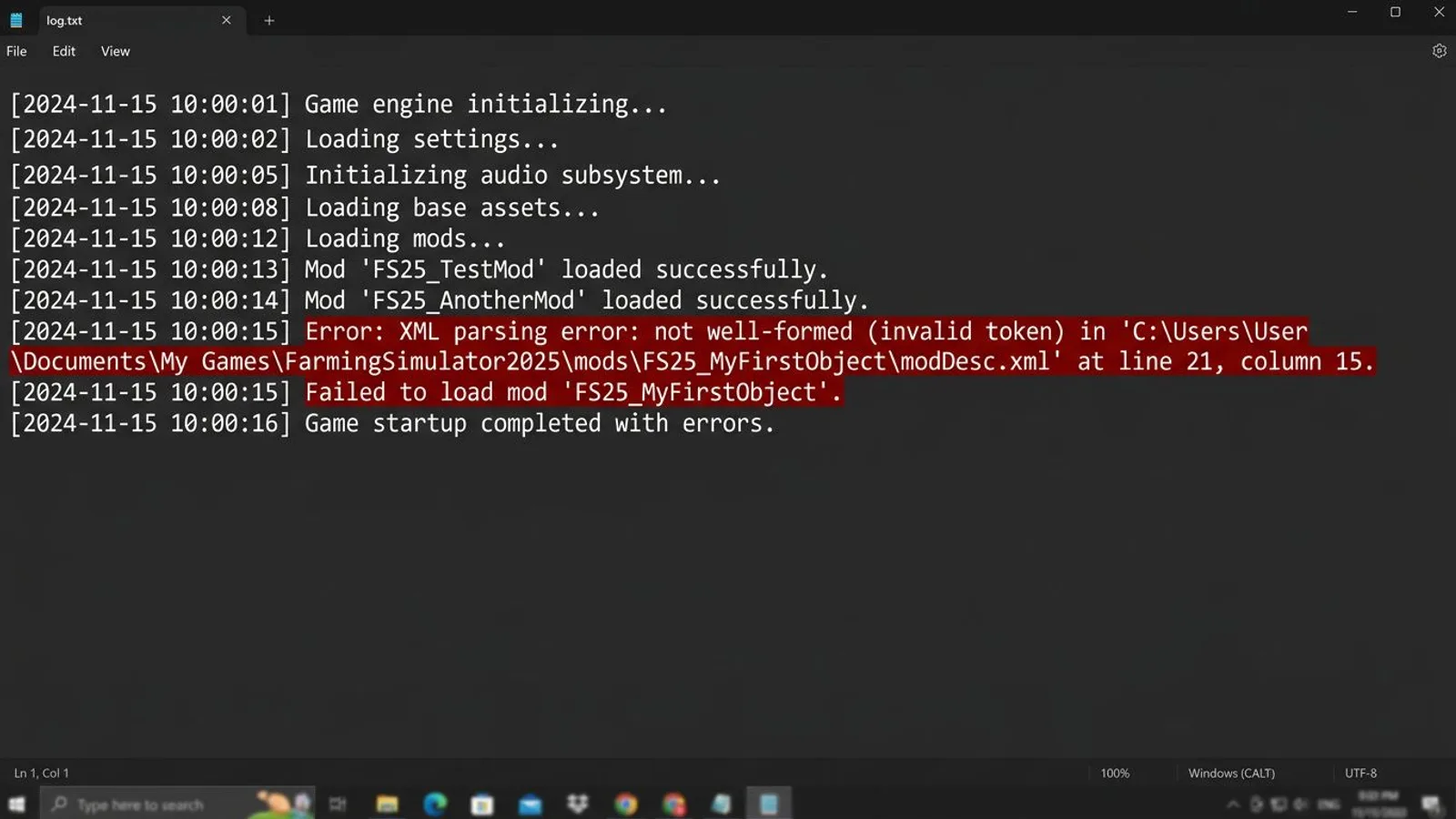
In the same directory as the mods folder, under Documents\My Games\FarmingSimulator2025, FS25 writes a log.txt on every start. That's where anything that goes wrong while loading a mod ends up: an XML parsing error in the modDesc.xml, a missing texture format, a script that crashes on startup. Before asking for help in a forum or guessing further on your own, always check this file first. The line with the first error message after your mod loads almost always points straight to the file responsible.
The file gets overwritten on every game start, so it only ever holds the state of the most recent run. To narrow down a bug, it helps to restart FS25, activate only the one mod in question, and open log.txt right after, instead of hunting through a whole list of active mods for the cause. The fewer other mods are active during the test, the more clearly an error message points to one specific mod.
 AI-generated
What we learned about zip filenames
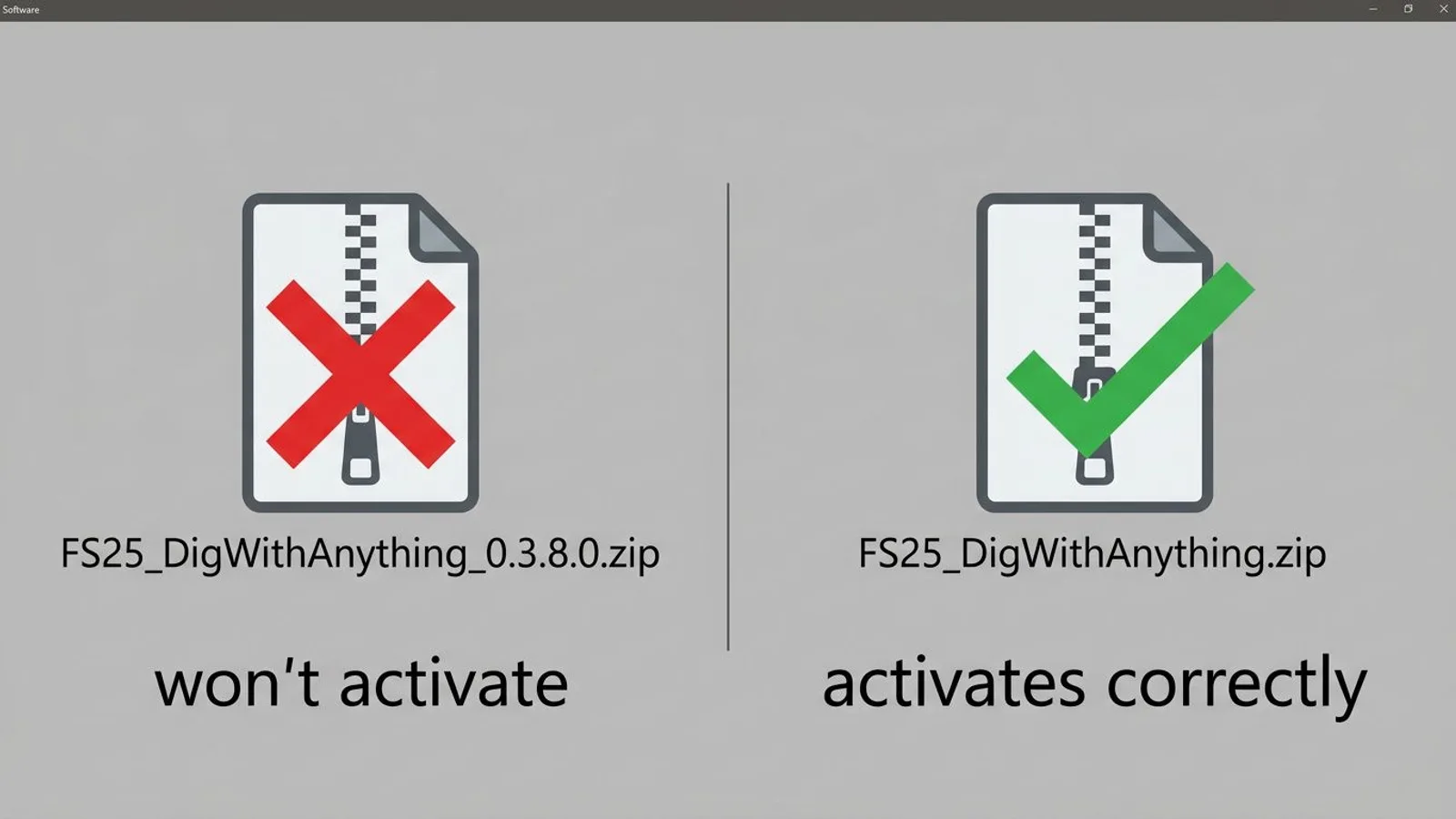
On 12.09.2026, we learned the hard way how strict FS25 is about zip filenames. The game builds the internal mod name directly from the zip's filename, and only the characters A to Z, a to z, 0 to 9 and the underscore are allowed. A zip named FS25_DigWithAnything_0.3.8.0.zip, with a version number containing periods baked into the filename, showed up normally in the mods folder listing, but would not activate. Only after renaming it to FS25_DigWithAnything.zip, with the periods removed, did the mod work immediately. By that point, a player had already spent about two hours looking for the cause, because neither the game nor log.txt showed a clear error message about it.
The version number belongs in the <version> field of the modDesc.xml instead. The zip's filename stays independent of that, and the simpler it is, the lower the risk of accidentally including a forbidden character.
That incident turned into a fixed rule for all our own mods: the zip name follows a set pattern of the prefix plus a short, descriptive name and nothing else, no periods, no spaces, no parentheses. Our build script now checks the filename against that pattern before every export, so the 12.09.2026 mistake doesn't repeat itself. Without that check, we would likely have noticed the problem through support requests rather than through an error message from the game itself.
 AI-generated
First test in-game
Copy the mod folder or zip into the mods folder, start FS25, and activate the mod from the mods menu in the main menu or directly while loading a save. If your mod isn't in that list, check the zip filename first, then log.txt. If the mod loads but the object is missing from the shop list, the problem usually sits in the modDesc.xml or in a missing required field like title or icon.
For a quick first test, a new save on a small map is enough. Open the shop menu, find the category your object belongs to, and check whether icon, name and description show up as planned. Only once that works does the next step make sense: actually placing the object and checking in-game whether collision, texture and, if present, script functionality behave the way they did in the GIANTS Editor. Skip that intermediate step and test everything at once, and narrowing down a bug afterward gets a lot harder.
Common problems
| Problem | Cause | Fix |
|---|---|---|
| Mod shows up in the mods folder but won't activate | Periods or special characters in the zip filename | Use only A-Z, a-z, 0-9 and underscore in the filename, put the version in the modDesc.xml instead |
| Mod is missing from the list entirely | modDesc.xml sits in a subfolder instead of the zip's root | Move the modDesc.xml up one level, directly into the top folder |
| Game crashes or errors while loading the mod | XML error or wrong texture format | Open log.txt and check the first error line after your mod loads |
| Object loads but has no icon or description in the shop | iconFilename or title/description missing or misspelled in the modDesc.xml | Check the required fields in modDesc.xml against the sample mod from the SDK |
For installing the GIANTS Editor and the Texture Tool, see our GIANTS Editor getting started guide. For bringing a finished 3D model into your placeable, see our i3d import guide. For exporting from Blender itself, we have a dedicated Blender guide, and for an overview of i3d, FBX and glTF, see our 3D file formats overview.
Frequently asked questions
Which tools do I need to build an FS25 mod?
The GIANTS Editor and the GIANTS Texture Tool for the model and textures, the Blender or Maya exporter plugins depending on where your model comes from, TestRunner to check the mod before upload, and for script mods the Farming Simulator IDE Support extension for VS Code.
Where is the mods folder on Windows?
By default under Documents, My Games, FarmingSimulator2025, mods, inside the Windows user profile.
Why won't my mod activate even though it's in the mods folder?
In most cases there are periods in the zip filename, often from a version number. Only letters, digits and underscores are allowed in the mod name; the version belongs in the modDesc.xml, not in the filename.
Where do I find error messages about my mod?
In log.txt, in the same folder as the mods folder. That's where loading errors, broken XML files and wrong texture formats show up.
What does the GIANTS TestRunner check?
According to GIANTS Software, it checks an unpacked mod folder before upload for duplicate files, incorrect texture formats and invalid XML files.