GIANTS Editor for FS25: Download, Installation, First Steps
GIANTS Editor is the free, official tool from GIANTS Software for maps, placeables, and i3d scenes. Version 10.0.13, released for Farming Simulator 25 from patch 1.20.0 onward, is the current release on the GDN.
- Version
- GIANTS Editor 10.0.13 (FS25 from patch 1.20.0)
- You need
- Windows, a free GDN account
- Cost
- Free
- Download size
- about 41 MB
What is GIANTS Editor?
GIANTS Editor is GIANTS Software's official 3D tool for maps, placeables, and individual objects across the Farming Simulator series. For Farming Simulator 25 it is the program where modders place buildings, shape terrain, wire up scripts, and eventually save an i3d file, the format GIANTS uses for its 3D scenes.
The editor costs nothing. You download it through the GIANTS Developer Network (GDN), sign in with a free account, and install it like any other Windows program.
Unlike Blender or Maya, GIANTS Editor is not a general-purpose modeling program. It imports finished models from those programs through dedicated exporter plugins, then takes over everything specific to the game: collisions, terrain, lighting, script hookups, and the final i3d structure that FS25 actually loads.
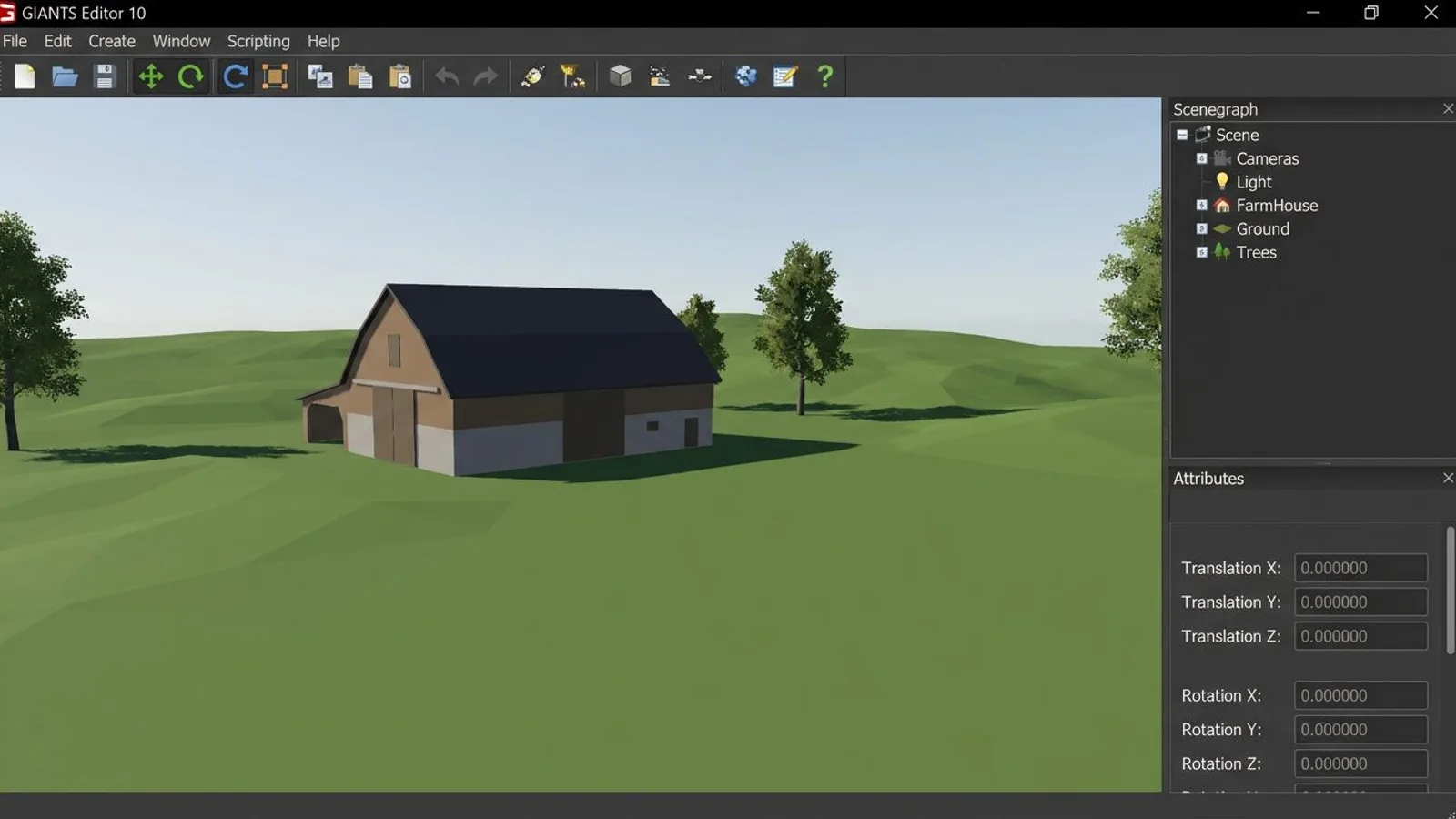
The same editor serves quite different modding groups: map authors shaping terrain and laying out fields, vehicle modders adding collision boxes and axles to imported vehicle meshes, and authors of single placeables such as sheds, fences, or our own PBR objects. All of them work in the same base interface, only the attributes they end up setting differ by object type.
 AI-generated
Which version for which game?
GIANTS Software maintains a separate editor line for each game, and the versions are not interchangeable. FS25 has used GIANTS Editor 10.0.13 since 23.06.2026, released for FS25 from patch 1.20.0 onward, as a Windows download of about 41.4 MB. Anyone still working on Farming Simulator 22 stays on version 9.0.6.
| Editor version | Game | Platform | Size |
|---|---|---|---|
| 10.0.13 | FS25 from patch 1.20.0 | Windows | 41.40 MB |
| 9.0.6 | FS22 | Windows | 18.14 MB |
| 10.5.1 | Project Motor Racing | Windows | 74.12 MB |
Project Motor Racing (PMR) runs on the same GIANTS engine but has its own, newer editor line. For FS25 mods only the 10.0.13 line matters, even though PMR's higher version number looks more current at a glance.
This mapping is not a detail you can skip. An editor from the wrong line will often still open an old i3d file, but on save it may write a structure the newer or older game version no longer loads cleanly. Check which game and patch level you are actually running before you download anything.
Downloading GIANTS Editor
Step 1: Create a GDN account
Every download on the GDN, including the editor itself, requires a login. The account is free and takes a few minutes to set up. Without signing in, the downloads page still lists the files, but the actual download link only appears after login.
Step 2: Download the editor
On the GDN downloads page, the current release sits under the "Editor" section. Check the "Compatibility" column: for FS25 it needs to read "FS25 1.20.0+", not "FS22" or "PMR" (Project Motor Racing, a separate GIANTS title with its own editor line). Download the installer and note where it lands.
Installing on Windows
Step 3: Run the installer
Launch the downloaded file and follow the setup wizard. Note the install folder, because the Texture Tool lives there as well.
Step 4: Keep the game install path in mind
The editor needs to know where FS25 is installed. If you do not know the install folder off-hand, check the properties of your FS25 shortcut or your launcher's library view. How to enter the path in the editor is covered in the next section.
Step 5: Check your graphics driver
The editor renders its viewport through a modern graphics interface. GDN forum reports occasionally mention a Vulkan-related error code when the graphics driver is outdated or the GPU gets overloaded during a session. An up-to-date driver from your graphics card vendor lowers the odds of hitting the "Could not create the render device" error right at first launch. If it shows up anyway, our troubleshooting guide covers the fix.
First launch and the game directory
On first launch, the editor opens an empty scene. If path detection did not work automatically, or you moved your FS25 installation afterward, set the path by hand: through the File menu, then Preferences, the General tab, and the game installation field. Without a correct entry there, maps and vehicles from the game either fail to open or the editor crashes while loading them, covered in more detail in our troubleshooting guide.
How the interface is laid out
GIANTS Editor does not open every panel automatically. The Window menu toggles individual panels on and off, and you resize them by dragging their borders.
Viewport
The viewport shows the 3D scene. Right-clicking inside it opens the view options: you switch between shaded and wireframe display, toggle the grid and polygon count, pick a hardware profile matching your machine, and turn on a debug mode that flags problems on a 3D model.
Scenegraph panel
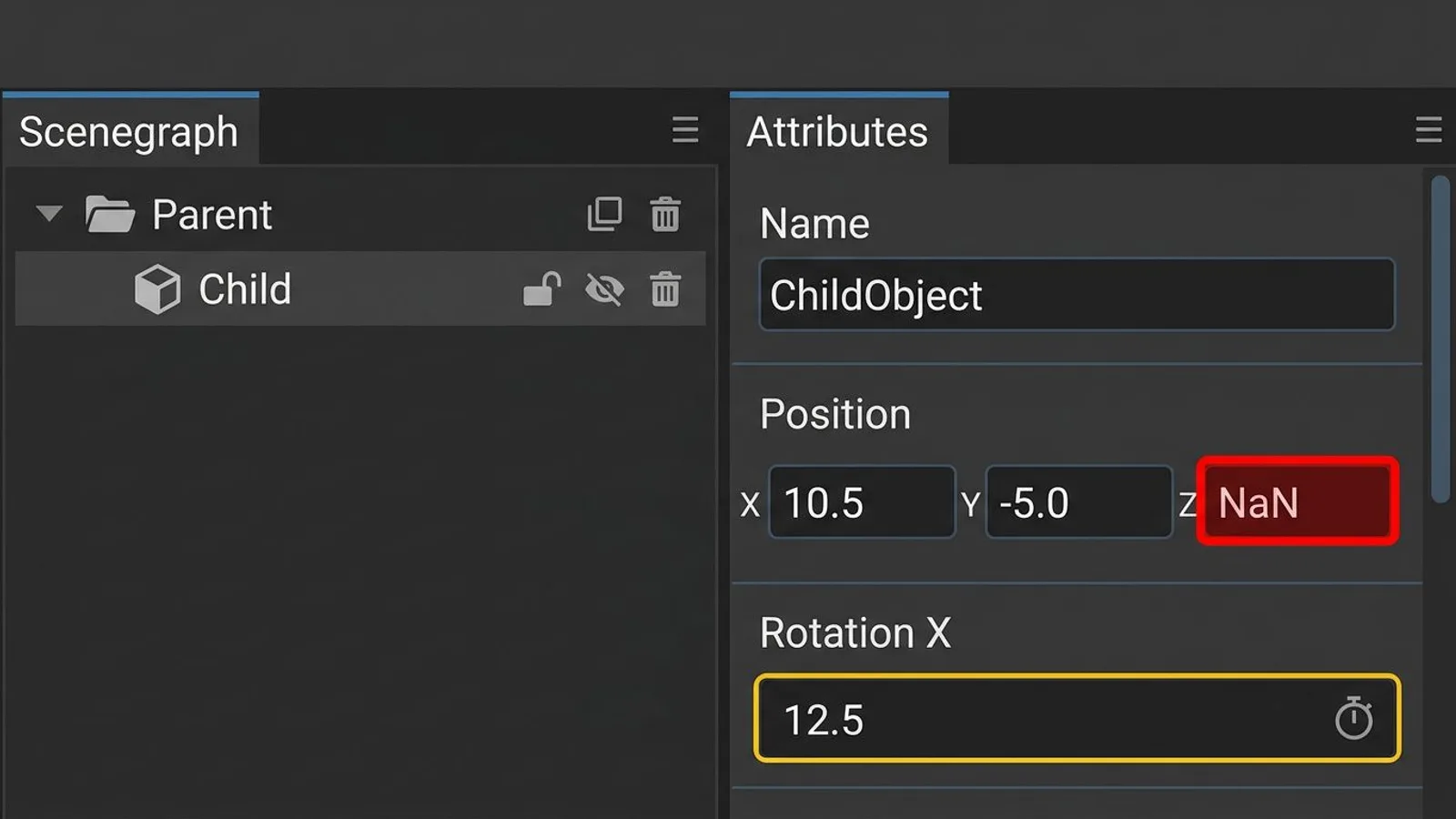
The scenegraph lists every object in the scene along with its parent-child relationships, similar to Maya. The Create menu adds, for example, a transform group, a plain organizational object that lets several children move together. Dragging one object onto another with the middle mouse button held down makes it a child, or you can use Edit, Cut and Paste instead.
 AI-generated
Attributes panel
Selecting an object in the scenegraph or directly in the viewport shows its properties in the Attributes panel: name, position, scale, and further values depending on the object type. A field turning red means you entered an invalid value, for example a scale other than 1 on a dynamic rigid body. Fields marked yellow belong to animated attributes.
Toolbar
The toolbar along the top bundles the most frequently used functions for moving, rotating, and scaling objects, plus switching between edit modes. For a first session it is enough to recognize the three basic tools, the rest is fastest to pick up through actual use.
Terrain editing and user attributes
Map authors get a dedicated terrain tool for shaping height, textures, and farmlands directly in the viewport, documented under "Terrain Editing" in the GDN editor docs. Scripters rely on the User Attributes panel: it lets you add your own named values to an object, which your Lua script then reads at runtime, for example to drive a door animation or a sell price. Both tools appear through the same Window menu as everything else.
Further down the GDN docs list a scripting panel for running Lua code directly inside the running scene, a replace dialog for swapping several matching objects in one step, and an interactive placement mode for setting objects along surfaces with the mouse instead of typing every coordinate by hand. None of this is required on day one, but it helps to know it exists before you redo the same manual work ten times over.
First exercise: opening an i3d file
An empty scene shows little, which is why GIANTS' own documentation suggests loading a simple i3d file to start. Here is the sequence:
Step 1: Open a file
Open an i3d through File, Open, for example from an unpacked mod or the i3d from one of our 3D model packages. If the scene looks too dark, add a light source through Create, Light.
Step 2: Select and inspect an object
Click an object in the viewport or the scenegraph, center the camera on it with F, and check its position and scale in the Attributes panel.
Step 3: Insert an object of your own
Go to Create, Transform Group to add a new, empty object to the scene. It shows up immediately in the scenegraph. Rename it in the Attributes panel, nudge it with the move tool from the toolbar, then drag it onto an existing object with the middle mouse button held down to attach it as a child. That covers the three core moves you will repeat later when bringing in your own models: create, rename, place in the hierarchy.
Step 4: Save
Save the file under a new name (File, Save As) so you do not overwrite the original. That completes the full cycle once: open, inspect, change, save, the exact sequence you will repeat later when installing your own models. Details on that, including so-called Merge Groups for combining several shapes, are in our guide on importing 3D models.
PBR textures in GIANTS Editor
Once you bring in your own textures, the channel layout of GIANTS' specular map matters, it differs from the classic ORM/ARM format. How to convert and assign your textures correctly is covered in our dedicated guide to PBR textures in GIANTS Editor.
Additional tools on the GDN
Beyond the editor itself, the GDN offers a handful of free tools that belong to the same workflow:
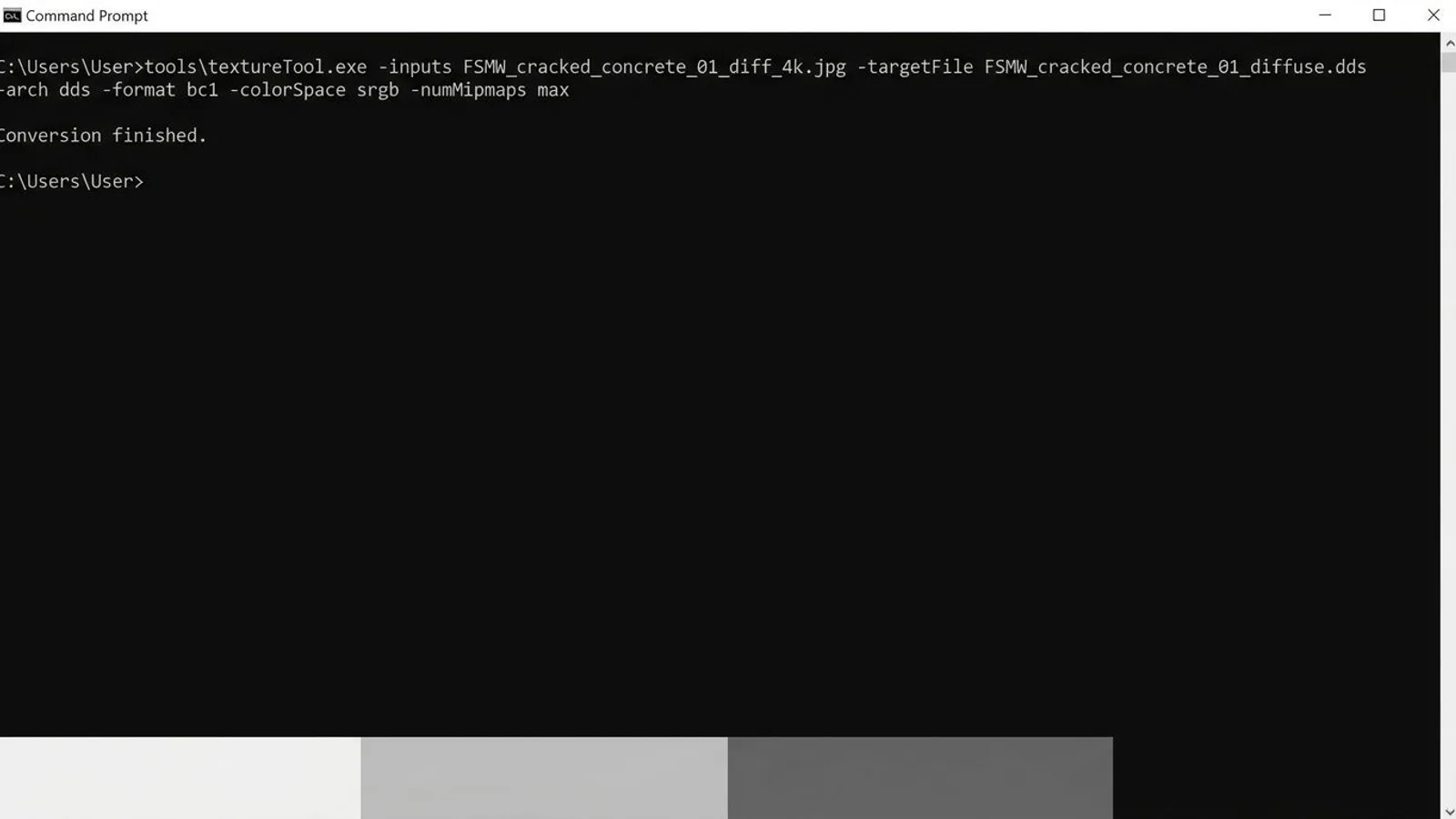
- The GIANTS Texture Tool converts diffuse, normal, and specular maps into the DDS format that the editor and FS25 read. With editor 10.0.13 it ships inside the install folder under
tools/textureTool.exeand can also be driven from the command line, useful once you are converting several textures in one go. - The Blender Exporter Plugins (currently version 10.0.2 for FS25) and the Maya Exporter Plugins (version 10.0.1) export models straight into the i3d format, carrying over material assignments and collision flags from the source software.
- TestRunner (version 0.9.20) checks mods automatically for errors before you publish them.
- Visual Studio Code has an official extension with FS25 scripting support, handy once you wire a Lua script to a placeable.
- The Icon Generator (version 10.0.4) produces store icons for vehicles and placeables at the size the game expects, so they do not look stretched or blurry in the shop menu.
All of these tools sit on the same downloads page as the editor and use the same GDN account, one more reason to set that account up on your first visit.
 AI-generated
Common problems in the first session
| Problem | Cause | Fix |
|---|---|---|
| Editor hangs at "Starting" or crashes immediately | Corrupted or outdated configuration file | Close the editor, delete its config and log files under local AppData, restart (details in our troubleshooting guide) |
| Editor crashes while opening a map or mod | Wrong or missing path to the game installation | Fix the path under File, Preferences, General to point at your FS25 install |
| Download button on the GDN stays greyed out | No GDN account, or not signed in | Create a free account and sign in before downloading |
| Viewport stays completely black after opening an empty scene | No light source in the scene | Add one through Create, Light |
Where to go from here
With the download, installation, and a first pass through the viewport out of the way, the foundation is set. From here the path leads to your own textures and models, and to the wider picture of modDesc, mod folder structure, and game integration covered in our FS25 modding basics. Anyone who hits a wall first will find the known cases and their fixes in our GIANTS Editor troubleshooting guide.
Frequently asked questions
Is GIANTS Editor free?
Yes. GIANTS Software distributes it for free through the GDN, all you need is a free account.
Which version do I need for FS25?
GIANTS Editor 10.0.13, compatible with FS25 from patch 1.20.0 onward. Farming Simulator 22 uses the older 9.0.6 line.
Does GIANTS Editor run on Mac or Linux?
The GDN only offers a Windows build, there is no official version for other operating systems.
Do I need the game installed for the editor to work?
Yes. The editor stores the path to your FS25 installation in its preferences, without it maps, vehicles, and placeables will not open correctly.
How large is the download?
The Windows installer for version 10.0.13 is listed at about 41 MB on the GDN.