Fixing GIANTS Editor Crashes: Common Errors and Solutions
Most GIANTS Editor crashes trace back to either a wrong path to the game installation or a corrupted configuration file. Both are fixed through File, Preferences, General, or by deleting the editor's configuration in the local AppData folder.
- Log file
- %LOCALAPPDATA%\GIANTS Editor 64bit <version>\editor_log.txt
- Most common cause
- Wrong path to the game installation
- Quick test
- Set the graphics profile to Low in the view options
- Settings menu path
- File > Preferences > General
This guide only covers errors reported repeatedly on GIANTS' own GDN forum, together with the fixes that actually worked there. It applies to modders on Farming Simulator 25 as much as to older editor versions, the error messages involved show up across several editor generations. Download and installation basics are covered in our GIANTS Editor getting-started guide.
Where is the GIANTS Editor log file?
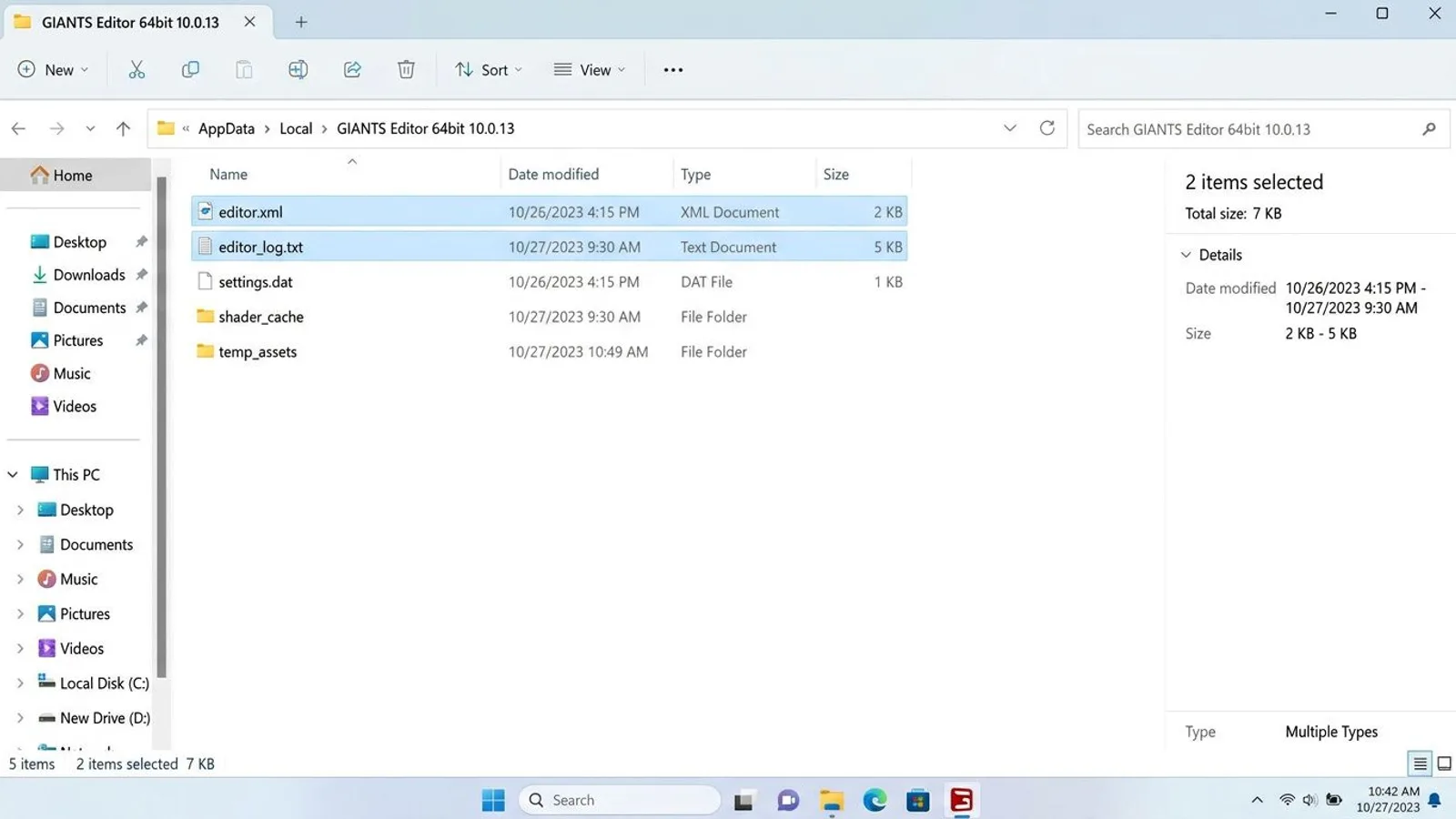
The editor writes a log file called editor_log.txt on every launch. It sits in your Windows account's local AppData folder, inside a subfolder named after the editor version, for example %LOCALAPPDATA%\GIANTS Editor 64bit 10.0.13\editor_log.txt. If the folder name is unclear, File, Preferences, General tab, Logging section shows the full path. This file is the first thing to check after any crash: it shows the last step the editor took before it quit.
 AI-generated
Editor won't start or hangs at "Starting"
If the editor sits permanently at "Starting" or crashes right after, GDN forum reports consistently point to a corrupted or outdated editor.xml, the configuration file living in the same AppData folder as the log file. Close the editor completely, delete editor.xml along with everything in the log subfolder, and relaunch it. The editor writes a fresh configuration on the next start. Reinstalling alone rarely helped in reported cases, since the old configuration file survives a reinstall.
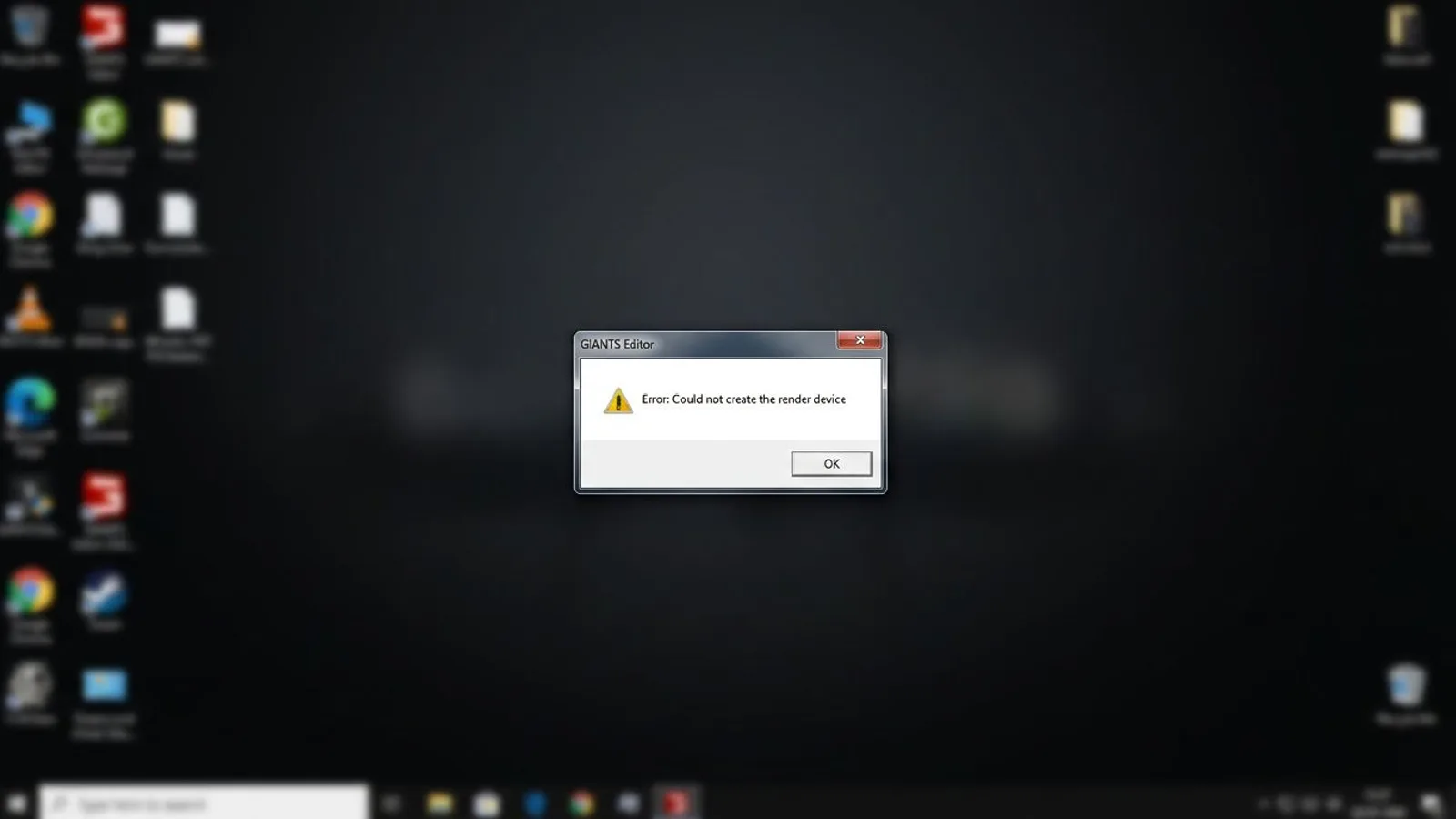
"Could not create the render device"
This message means the editor could not connect to the graphics card for its 3D output. On the GDN forum, affected users reported Vulkan error codes such as "failed to enumerate Vulkan physical devices" and failures while creating the so-called swap chain, part of the graphics pipeline. Two fixes worked there: updating the graphics driver, or, if the editor gets far enough to start, right-clicking inside the viewport to open the view options and picking a lower graphics profile (Low) under Profile before loading a map.
 AI-generated
"Wrong game installation path" and "Invalid Old Game Install Directory"
These two messages sound alike, but on the GDN forum they point at two different spots in the editor.
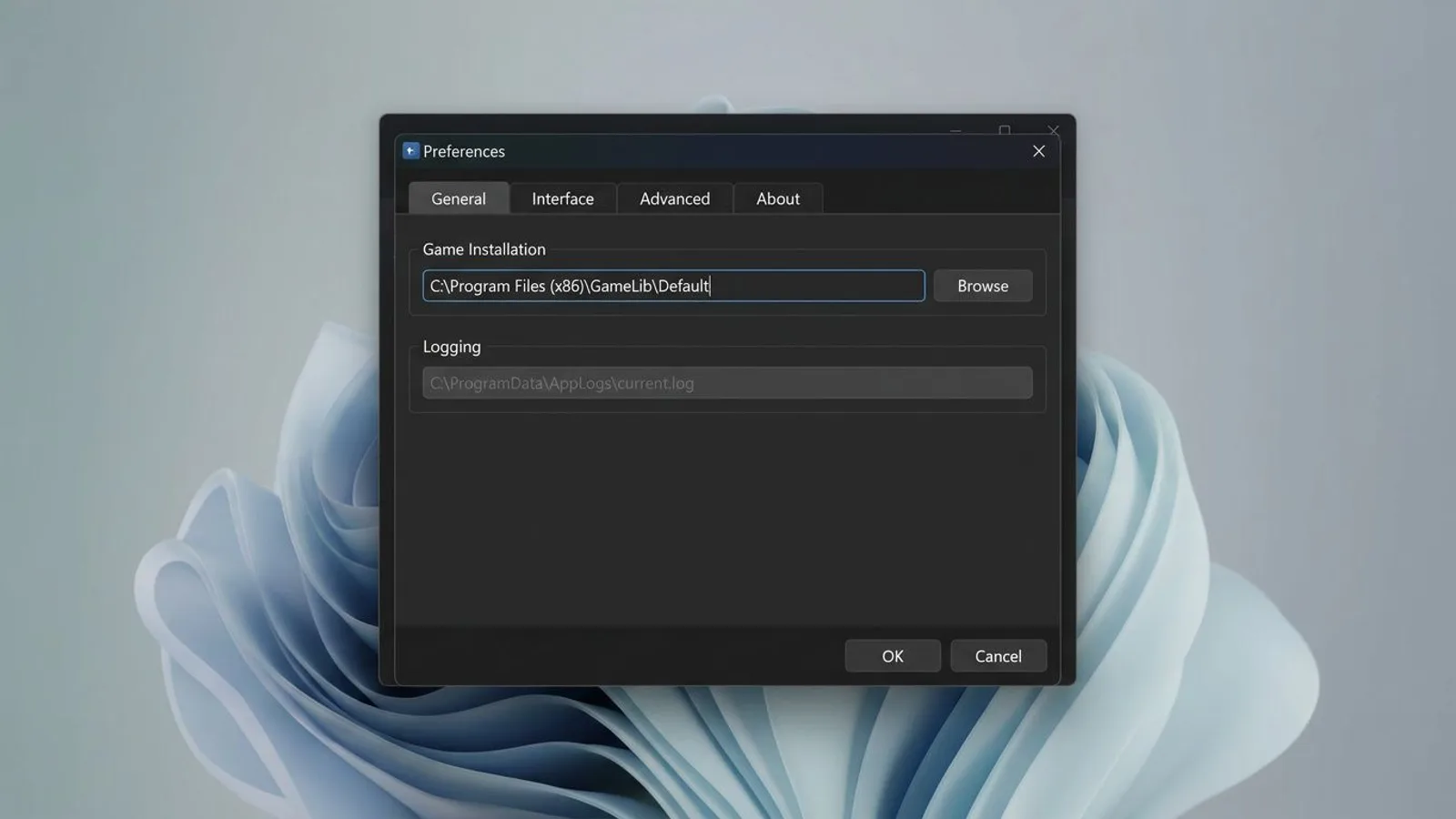
"Wrong game installation path, please verify editor preferences" means the path stored in the editor's preferences does not point to a valid, current FS25 installation. This happens often after a game update, a drive change, or when the path of an older game is still entered by mistake.
 AI-generated
The fix, per the GDN forum: File, Preferences, General tab, "Game Installation" field, enter the correct folder of your FS25 install there. You find that path through the properties of your game shortcut or the library view of Steam or Epic. No reinstall of the editor is needed after changing the path, restarting the program is enough.
"Invalid Old Game Install Directory", by contrast, does not show up on a normal FS25 install according to the GDN forum. It appears when converting a mod from an older game version (FS22 to FS25, for example): the editor separately asks for the path to the OLD game, and that extra entry is the one that's wrong or empty. Forum fixes that worked: actually having the old game version installed, entering paths with forward slashes instead of backslashes, and replacing underscores in auto-suggested folder names (such as "Farming_Simulator_22") with spaces.
Editor crashes when opening a map or a large mod
Besides wrong paths, the forum describes a second, unrelated cause of crashes on very large maps: insufficient graphics memory. In one reported case, a laptop with a dedicated but modest graphics card (12 GB of system memory, little VRAM on the GPU) crashed while opening a 16x map with the log entry "vkWaitForFences() failed with error code -4, the GPU likely crashed", while a smaller map (8x) opened fine on the same machine. The explanation discussed in the thread: the available graphics memory isn't enough for the 16x map, so the GPU fails to respond in time and the Vulkan call times out. If the crash persists, based on that thread only a graphics card with more VRAM or working on a smaller section of the map temporarily will help.
Before a large map or an extensive mod runs into save-time trouble at all, it is worth running TestRunner first (see our getting-started guide), which checks mods automatically for errors before you publish them.
White textures and missing shaders
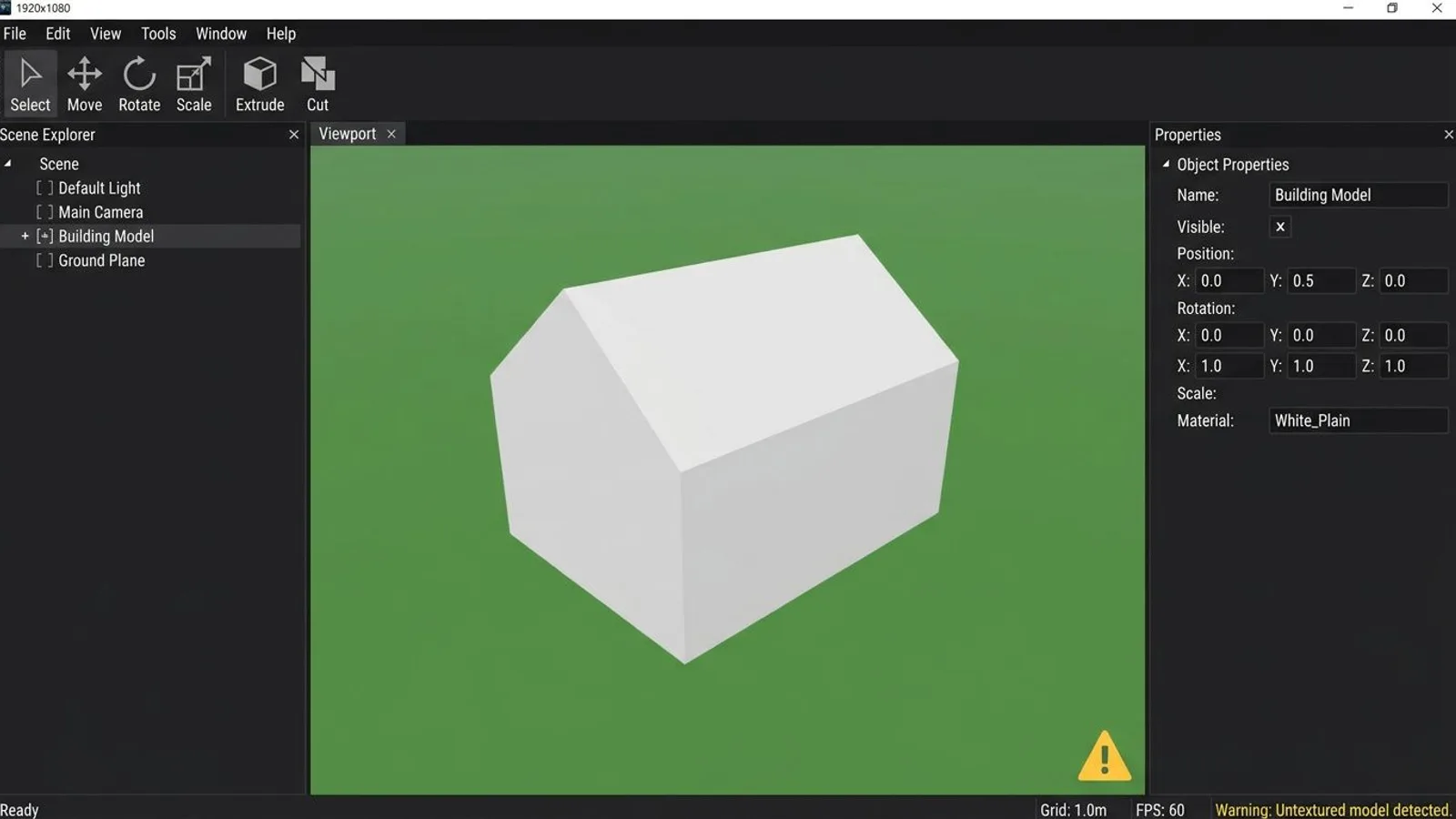
Unlike in some other 3D programs, the placeholder color for a texture that cannot be found is not pink in GIANTS Editor or in the game, it's white: an object showing up completely white in the viewport, or later in the game, instead of textured means the matching texture file could not be loaded. GDN forum threads document causes such as a broken or outdated file path in the i3d or the material, left over after reorganizing folders, and a texture stored in the wrong technical format, for example a 2D array file where the shader expects a plain 2D texture.
One reported case shows the pattern well: after cleaning up a map's folder structure, the editor reported "Warning: Missing texture 'albedo' in 'groundDetail_mat'" pointing at the game's own groundShader.xml, along with several warnings about textures of the wrong type, and every object texture showed up white. One forum reply guessed the cause wasn't the shader file itself but the relative texture paths the user had just changed in their own material, and suggested undoing recent changes and reapplying them one at a time rather than suspecting the game's base shader file. The full log always names the exact path that could not be found.
 AI-generated
Why objects look black instead of lit in the game
A related but separate problem does not involve the editor at all, but the finished specular map in the game: objects come out not white, but completely black and unlit. We measured this on our own models on 05.09.2026. The cause was too low a value in the green channel of the specular map, which carries ambient occlusion in FS25: our first recipe wrote a value around 30 there instead of a bright one, which made the objects look almost black in the game even though the editor itself showed no error. Since correcting our channel mapping (R for gloss, G for ambient occlusion, B for metallic), the lighting is correct. The distinction matters: white means a missing file, a black object despite a present texture means wrong values inside a channel that is actually there.
Common problems at a glance
| Problem | Cause | Fix |
|---|---|---|
| Editor hangs at "Starting" or crashes immediately | Corrupted editor.xml or old log files |
Close the editor, delete editor.xml and the log folder under AppData, restart |
| "Could not create the render device" | Outdated graphics driver or an overloaded GPU | Update the graphics driver, set the graphics profile to Low |
| "Invalid Old Game Install Directory" when converting a mod | Wrong or missing path to the OLD game version | Install the old game version, enter the path with forward slashes and no underscores |
| Crash only on very large maps | Not enough graphics memory for the map size | Test a smaller map, or use a graphics card with more VRAM |
| Object shows up white in the viewport or game | Missing texture path or wrong texture format | Check the path in the i3d/material, re-import the texture in the right format |
| Object looks completely black in the game | Wrong value in the AO channel of the specular map | Check the specular map's channel mapping (R gloss, G AO, B metallic) |
Beyond this, our guide to PBR textures in GIANTS Editor shows how to map texture channels correctly from the start, and the FS25 modding basics place the editor within the larger workflow of a mod.
Frequently asked questions
Where is the GIANTS Editor log file?
Under %LOCALAPPDATA%\GIANTS Editor 64bit <version number>\editor_log.txt. File, Preferences, General tab, Logging section also shows the exact path.
What does "could not create the render device" mean?
The editor could not set up its 3D view through the graphics card, usually because of an outdated graphics driver or an overloaded GPU. A driver update or a lower graphics profile fixes it in most reported cases.
Why does the editor say "Invalid Old Game Install Directory"?
This message shows up when converting a mod from an older game version, not during a normal FS25 install. The editor separately asks for the path to the OLD game (FS22, say), and that specific entry is the one that's wrong or points at a folder with no game installed.
Why does the editor only crash on large maps?
According to GDN forum reports, very large maps (16x, for example) often exceed available graphics memory, the GPU stops responding in time, and the editor crashes.
Where do white or completely black objects come from?
White is the placeholder color GIANTS Editor and the game use for a texture that cannot be found. Completely black, unlit objects in the game are usually a different issue: a wrong value in the ambient occlusion channel of the specular map.